
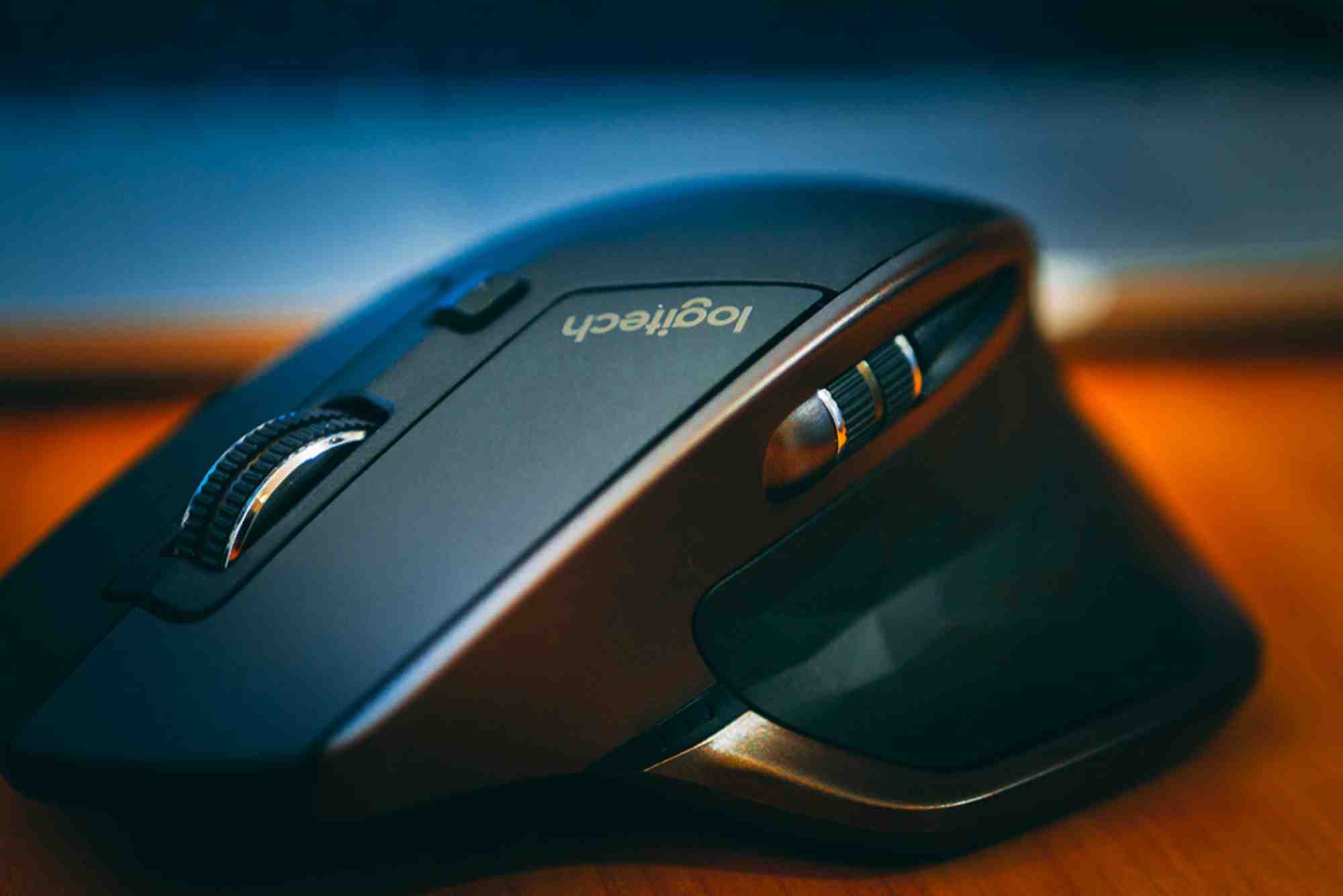
Top Features of Logitech Mouse Software You Should Try
In today’s digital age, a mouse is more than just a pointing device—it’s a key part of your workflow or gaming experience. If you own a Logitech mouse, then you’re already ahead of the curve in terms of quality and performance. But to unlock its full potential, you need to explore the Logitech mouse software that comes with it.
Whether you’re a gamer, a creative professional, or a casual user, the Logitech software enhances how your mouse functions. From button remapping and gesture control to DPI adjustments and application-specific profiles, there’s a lot to dive into. In this article, we’ll walk you through the top features of Logitech mouse software that you should be using today.
Understanding Logitech Mouse Software
Before we get into features, let’s clarify what Logitech mouse software actually is. Logitech offers two main programs: Logitech Options and Logitech G HUB. Logitech Options is tailored for productivity mice, while G HUB caters to the gaming line.
Both platforms let users fine-tune their mouse’s performance, offering an array of customization features. The key difference lies in the interface and level of control—Options is more user-friendly for general users, while G HUB provides granular control for serious gamers and professionals.
Custom Button Assignments
One of the most praised features of Logitech mouse software is the ability to reassign any button to perform nearly any function. Whether it’s a keyboard shortcut, a multimedia control, or launching an application, this flexibility makes daily tasks smoother.
For example, if you’re editing videos, you can map “cut” or “undo” to a thumb button. Gamers can assign complex combo moves or weapon swaps. It saves time and keeps your hand off the keyboard, boosting productivity and efficiency.

DPI Settings and Sensitivity Control
DPI (dots per inch) controls how sensitive your mouse is to movement. Logitech mouse software allows you to set multiple DPI levels and switch between them on the fly. This is extremely useful for gamers who need different sensitivities for sniping and rapid movement.
Graphic designers and CAD users also benefit by setting a lower DPI for pixel-perfect precision. With just a press of a button, you can go from high-speed scrolling to controlled detailing.
Application-Specific Profiles
One of the smartest features in the Logitech mouse software is the ability to create application-specific profiles. This means your mouse behaves differently depending on the app you’re using.
In Adobe Photoshop, you might want the side buttons to switch tools. In Excel, those same buttons can navigate sheets or run macros. Logitech Options and G HUB automatically switch profiles when you launch the associated app—no manual toggling needed.
Flow Cross-Computer Control
Logitech Flow is a productivity game-changer. It allows you to move your cursor between two or more computers as if they were one. You can even copy and paste files and text between systems seamlessly.
This is ideal for people who work across a desktop and a laptop or a Windows and macOS environment. All it takes is a shared network and Flow-enabled Logitech mice—no cloud drives, no emailing files back and forth.
Battery and Performance Monitoring
Another useful function of the Logitech mouse software is the battery and performance dashboard. In G HUB, for instance, you get real-time data on battery level, performance status, and even heat maps of button usage.
This is especially helpful for gamers who need to monitor battery life during competitive matches or long gaming sessions. You can also tweak settings to extend battery life without sacrificing too much performance.
RGB Lighting Customization (G HUB Only)
If you’re using a Logitech gaming mouse, chances are it comes with RGB lighting. Through G HUB, you can customize lighting effects, sync with other Logitech devices, or even match the lights with in-game actions.
You can create a custom lighting profile for every game or application. Want your mouse to pulse red when your character is low on health? It’s possible. It’s not just eye candy—it enhances immersion.
Macros and Command Editor
G HUB takes customization further by letting you create macros—complex strings of actions performed with a single button press. You can record keystrokes, mouse movements, delays, and clicks. This is especially helpful in MMORPGs or for repetitive tasks in applications like Excel or Photoshop.
The command editor even supports LUA scripting for advanced users who want fine-grain control over mouse behavior. This gives you the freedom to automate nearly anything.
Onboard Memory
Many Logitech mice come with onboard memory, allowing them to store your customized profiles directly on the device. This means your preferences travel with your mouse. Whether you plug it into your home rig or a friend’s laptop, you don’t need to reinstall the Logitech mouse software to retain your settings.
It’s an underrated feature that’s invaluable for users who switch between machines frequently.
Gesture-Based Controls
Logitech Options adds another layer of control with gesture-based features. You can assign gestures to the middle button or another designated control, allowing you to perform multiple actions with a swipe or tilt.
For example, a swipe up could open your browser, while a swipe left switches virtual desktops. It adds efficiency without crowding your mouse with more buttons.
Firmware Updates and Device Sync
Both Logitech Options and G HUB also manage firmware updates for your mouse, ensuring you have the latest performance improvements and bug fixes. The software also syncs easily with Logitech keyboards, headsets, and webcams, offering a unified control center for all your gear.
When all your Logitech devices are managed from one place, it saves time and ensures everything is working harmoniously.
Compatibility with Multiple Operating Systems
Logitech has ensured that both software options support Windows and macOS, offering nearly identical functionality on both platforms. This makes the Logitech mouse software a reliable choice for users in hybrid computing environments.
Some Flow-compatible devices even work across OS boundaries—dragging and dropping between a Windows PC and a Mac is no longer a dream but a daily reality.
Unleash the Full Potential of Your Mouse
The Logitech mouse software transforms your mouse from a simple tool into a powerful, personalized device. Whether you’re looking for better productivity, smoother gaming, or enhanced workflow control, there’s a feature for you.
By tapping into button customization, DPI control, cross-device navigation, and macros, you gain more speed, accuracy, and flexibility in everything you do. If you haven’t yet explored the Logitech mouse software, now is the time.
FAQs
What is the Logitech mouse software called?
Logitech has two main software platforms: Logitech Options for productivity mice and Logitech G HUB for gaming mice.
Is Logitech mouse software free?
Yes, both Logitech Options and G HUB are completely free to download and use.
Can I use Logitech mouse software on Mac?
Absolutely. Both software platforms are compatible with macOS, with most features available across both Mac and Windows.
How do I remap buttons on my Logitech mouse?
Open Logitech Options or G HUB, select your device, and click on the button you want to remap. Choose a new function from the menu.
What does DPI mean in Logitech mouse software?
DPI (dots per inch) controls mouse sensitivity. Higher DPI allows faster pointer movement. Logitech software lets you adjust DPI settings easily.
Can I sync Logitech mouse settings across computers?
Yes, if your mouse has onboard memory, settings can travel with it. With Logitech Flow, you can also use the same mouse across multiple systems.