
Logitech Unifying Software: Connect Multiple Devices Easily
Logitech has long been known for creating user-friendly peripherals that deliver quality and convenience. One of the most underrated innovations in their lineup is the Logitech Unifying Software—a tool designed to simplify life for anyone using multiple Logitech devices like mice and keyboards. Instead of cluttering your workspace with numerous USB dongles, this software lets you connect up to six devices to a single tiny receiver.
In this guide, we’ll explore how the Logitech Unifying Software works, what makes it essential, how to set it up, and why it’s a game-changer for professionals, gamers, and remote workers alike.
What Is Logitech Unifying Software?
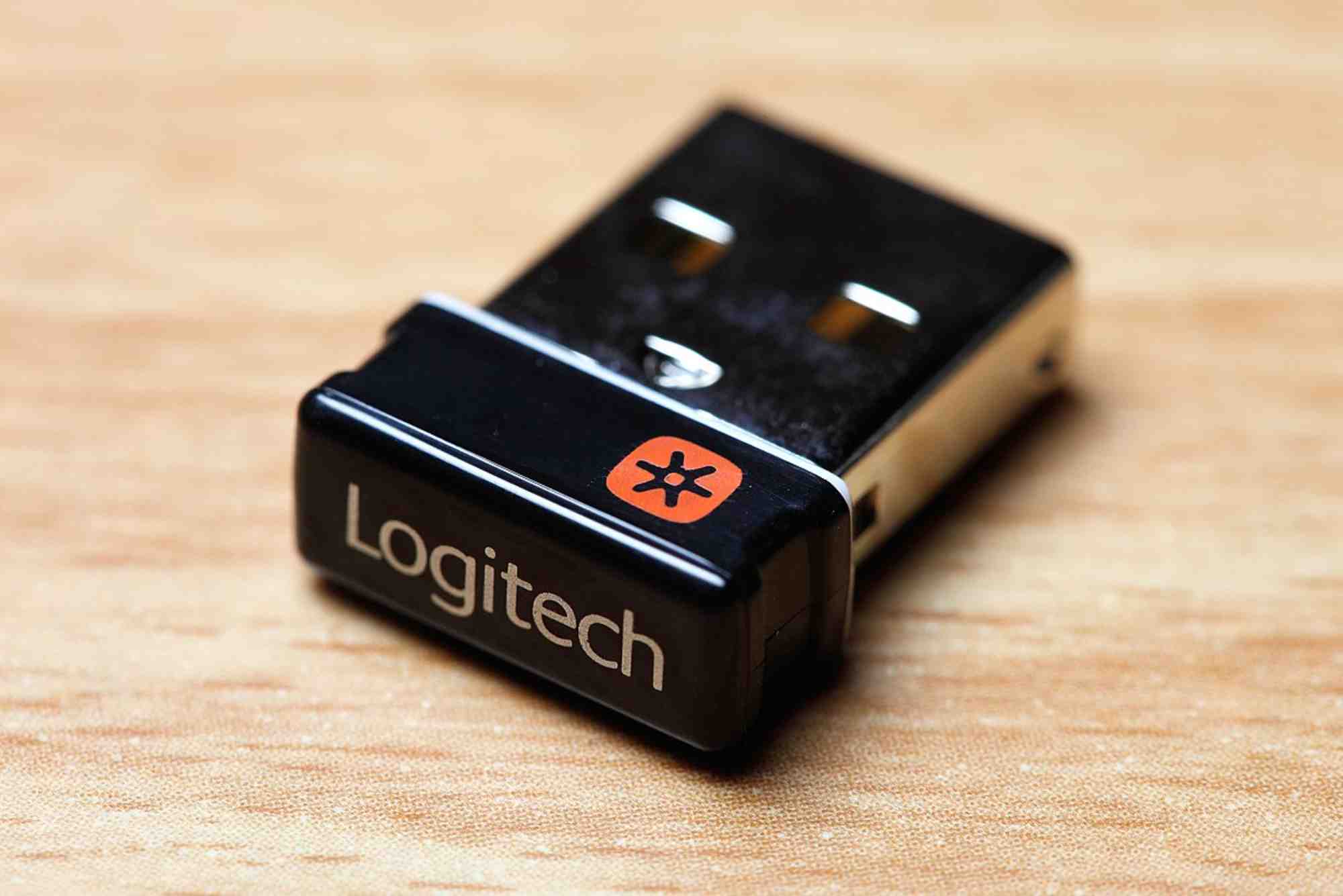
The Logitech Unifying Software is a free utility developed by Logitech to manage devices compatible with their Unifying Receiver. The Unifying Receiver is a small USB dongle marked with an orange star logo that communicates wirelessly with supported Logitech peripherals. This software allows users to pair, unpair, and manage up to six devices at once.
Not all Logitech devices are compatible with the Unifying Receiver, but most newer models in their lineup are. You can verify this by checking for the orange star on your device or its packaging.
Why Use Logitech Unifying Software?
The need for a streamlined device connection system has grown, especially for users juggling multiple input devices. Here’s where Logitech Unifying Software shines.
Reduces USB Clutter
With only one USB port taken up by the Unifying Receiver, you can free up valuable space on laptops and desktops with limited ports.

Simplifies Device Management
Whether you’re using a mouse, keyboard, or presentation remote, managing everything from one interface is a huge time-saver.
Ideal for Multitasking Professionals
If you use multiple computers or move your setup between home and office, the ability to carry one receiver for all your gear is incredibly convenient.
Reliable Wireless Connection
Using advanced 2.4GHz wireless technology, the connection is stable and lag-free, perfect for office productivity and casual gaming.
How to Download and Install Logitech Unifying Software
Setting up the Logitech Unifying Software is straightforward and doesn’t require technical expertise.
Download the Software
Visit Logitech’s official website and search for Logitech Unifying Software. Choose the version that matches your operating system—Windows or macOS.
Install and Launch
Run the installer and follow the on-screen instructions. Once installed, open the application. The interface is intuitive, offering a step-by-step process to pair devices.
Pair Your Devices
Insert your Unifying Receiver into a USB port. Then, turn on your Logitech device. The software will guide you through the pairing process, typically requiring a click or keystroke to confirm the connection.
Manage Devices
You can view all connected devices within the software, unpair ones you no longer use, and even pair new ones as needed.
Tips for Using Logitech Unifying Software Effectively
While the software is easy to use, here are a few tips to ensure a smooth experience:
Keep Devices Updated
Logitech also provides firmware update tools. Make sure your devices are up to date for optimal performance.
Use Only One Receiver at a Time
Using multiple Unifying Receivers on the same computer can cause interference. Stick with one to avoid conflicts.
Label Your Devices
If you have multiple keyboards or mice paired, labeling them in the software helps keep track.
Test Before Traveling
If you’re heading out with your Unifying Receiver and devices, do a quick functionality check to avoid setup hassles on the go.
Who Benefits Most from Logitech Unifying Software?
The Logitech Unifying Software caters to a broad range of users. Here’s how different groups benefit:
Office Professionals
Streamline your desktop by connecting your wireless mouse and keyboard to a single dongle. Ideal for reducing cable clutter.
Remote Workers
Move your setup between home and office without constantly pairing and unpairing devices. One receiver is all you need.
Educators and Presenters
Use presentation remotes, keyboards, and mice simultaneously during lectures without juggling multiple receivers.
Gamers and Streamers
Although hardcore gamers may prefer wired options, casual gamers and streamers benefit from the wireless convenience and reliability.
Security and Compatibility Considerations
Is It Secure?
Yes, the connection between your devices and the Unifying Receiver is encrypted using AES-128 bit encryption. While it’s not infallible, it’s safe for general use.
Device Compatibility
To check if your device is compatible, look for the orange Unifying logo on your product or in the manual. Not all Logitech wireless products support Unifying.
Operating System Support
The software is available for:
- Windows 7 and later
- macOS 10.10 and above
Unfortunately, it does not support Linux officially, although some users report success with workarounds.
Common Troubleshooting Tips
Sometimes you may run into issues while using Logitech Unifying Software. Here are quick solutions:
Device Not Pairing
- Ensure the device is turned on.
- Check if the battery is charged or inserted correctly.
- Restart the software or try a different USB port.
Receiver Not Detected
- Try another port or restart your PC.
- Uninstall and reinstall the Unifying Software.
Lag or Input Delay
- Reduce the distance between the device and receiver.
- Remove objects causing interference, like metal surfaces or other wireless devices.
FAQs
How do I add a device to Logitech Unifying Software?
Open the software, plug in your Unifying Receiver, and follow the pairing instructions for your new device. It usually involves switching the device on and performing a quick action like clicking a mouse button.
Can I use one Unifying Receiver for multiple computers?
Technically, no. A receiver can only be active with one machine at a time. However, you can re-pair devices on different machines using the software.
What is the range of the Unifying Receiver?
The range is about 10 meters (33 feet), but performance may degrade due to obstacles or interference.
Is Logitech Unifying Software free?
Yes, the software is completely free to download and use from the Logitech website.
Can I connect non-Logitech devices with the Unifying Receiver?
No. Only supported Logitech devices with the Unifying logo can be paired using the software.