If you’re encountering the dreaded “unable to acquire V-Ray for Rhino GUI license” error, you’re not alone. This issue affects many designers, architects, and 3D artists who rely on the V-Ray plugin within Rhino. Whether you’re in the middle of a project or launching Rhino for the first time, license issues can derail your workflow quickly.
In this guide, we’ll walk you through the most effective ways to resolve GUI license errors in V-Ray for Rhino. From basic checks to advanced solutions, you’ll gain a complete understanding of why this error happens—and how to fix it.
Understanding the V-Ray GUI License Error
Before we dive into solutions, it’s helpful to understand what this error actually means. V-Ray for Rhino uses a licensing system managed by Chaos License Server. When that server can’t verify your license, Rhino will display the “unable to acquire V-Ray for Rhino GUI license” message.
Why This Error Happens
Several issues can trigger this error:
- Your Chaos License Server is not running.
- Rhino or V-Ray can’t communicate with the license server.
- You’re using an outdated license or version mismatch.
- Firewall or antivirus software is blocking the license connection.
- Your license is in use on another machine.
Knowing these causes helps narrow down the fix more efficiently.
Step-by-Step Troubleshooting Guide
Let’s go through the most common and effective ways to resolve this error.

Verify Chaos License Server is Running
The most common reason for this error is that the Chaos License Server isn’t active.
- Open your browser and go to
http://localhost:30304. - If the License Server page loads, it’s running.
- If not, search for “Chaos License Server” in your Start Menu or Applications and launch it manually.
If it fails to start, reinstall the latest version from the Chaos Group website.
Check Your Network Settings
Your system might be blocking Rhino from reaching the license server.
- Disable VPNs or proxies temporarily.
- Ensure your firewall or antivirus isn’t blocking port
30304. - If you’re on a network license, verify that your client machine can ping the license server.
Pro Tip: Try connecting via Ethernet instead of Wi-Fi to eliminate connectivity issues.
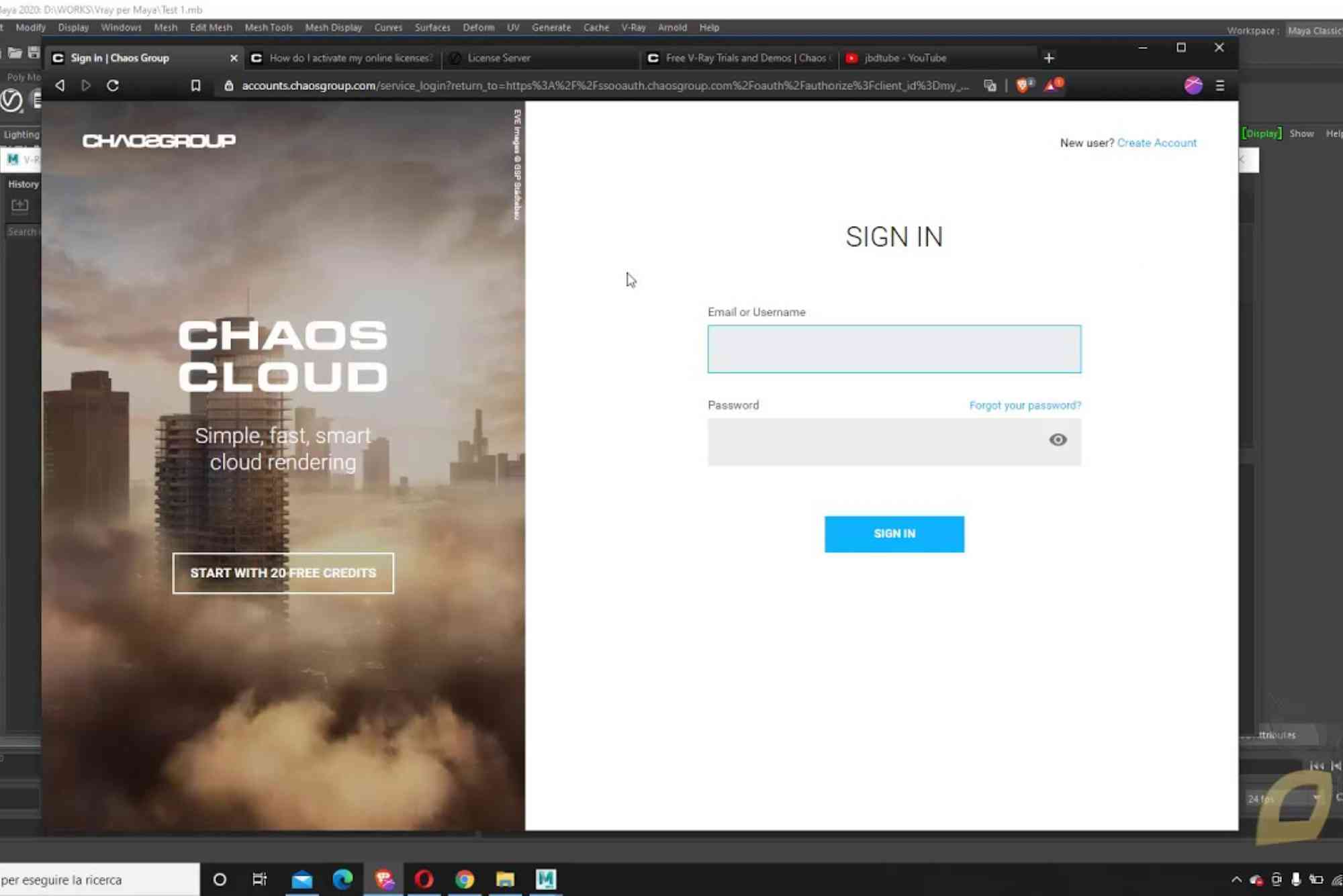
Ensure You’re Logged Into Chaos Cloud
Many users overlook this step. Even if you have a valid license, you must be signed into your Chaos account.
- Open the License Server interface.
- Click “Sign in with Chaos Account.”
- Enter your login credentials and confirm access to your license.
This step alone resolves the “unable to acquire V-Ray for Rhino GUI license” error for many users.
Update Your V-Ray and Rhino Versions
Incompatibilities between Rhino and V-Ray versions can create GUI licensing issues.
- Make sure you’re using a supported combination. For example, V-Ray 6 is compatible with Rhino 7.
- Check for software updates on the official V-Ray and Rhino websites.
- Update or reinstall both applications if needed.
Free Up Occupied Licenses
If you’re on a floating or limited-seat license, it might already be in use elsewhere.
- Open the License Server and review active sessions.
- If a license is assigned to another machine, release it from there or wait for it to become available.
Chaos now supports license borrowing. If you’re traveling or offline, this option might help prevent future errors.
Reinstall Chaos License Server
If all else fails, a clean reinstall might be your best option.
- Uninstall the current License Server.
- Download the latest version from Chaos.com.
- Reinstall and restart your computer.
Make sure you have administrative privileges when installing to avoid permission issues.
Common Scenarios and Fixes
Let’s cover a few real-world examples where users see the Unable to Acquire Vray for Rhino Gui License error—and what worked.
Studio Environment with Shared Licenses
Multiple users in a studio often run into license limits. A floating license manager should be correctly configured to distribute licenses evenly. Use the Chaos License Server Admin panel to monitor and control license access.
Laptop Users Switching Networks
Traveling designers often move between office and home networks. This can confuse the license server.
Fix: Borrow a license for offline use or set a static IP for consistent network recognition.
Firewall Blocking Chaos License Port
Some corporate firewalls block ports like 30304, which V-Ray needs.
Fix: Whitelist localhost:30304 and allow inbound/outbound traffic on that port.
Preventing Future License Errors
Once you’ve resolved the issue, take these steps to ensure it doesn’t happen again.
- Keep your software updated: Chaos regularly releases fixes for license bugs.
- Bookmark your License Server: Save
http://localhost:30304for easy access. - Use the Chaos Cloud login: Stay signed in to your Chaos account to maintain license sync.
- Check network policies: Coordinate with your IT team to ensure proper access to required ports and domains.
FAQs: People Also Ask
Why does V-Ray say unable to acquire GUI license?
This usually means the V-Ray License Server isn’t running or the license is already in use.
How do I restart the Chaos License Server?
Search for “Chaos License Server” in your system menu and launch it. Or reinstall it using the latest version.
Can I use V-Ray without an internet connection?
Yes, but you need to borrow a license in advance through the Chaos License Server settings.
Where do I download the Chaos License Server?
Visit chaos.com/downloads and select the appropriate version for your OS.
What port does the V-Ray license use?
By default, it uses port 30304 for local license access.
The “unable to acquire V-Ray for Rhino GUI license” error is frustrating, but not unfixable. With the right steps—checking your license server, ensuring login, updating software, and verifying network access—you can resolve this error quickly and get back to rendering with confidence.