
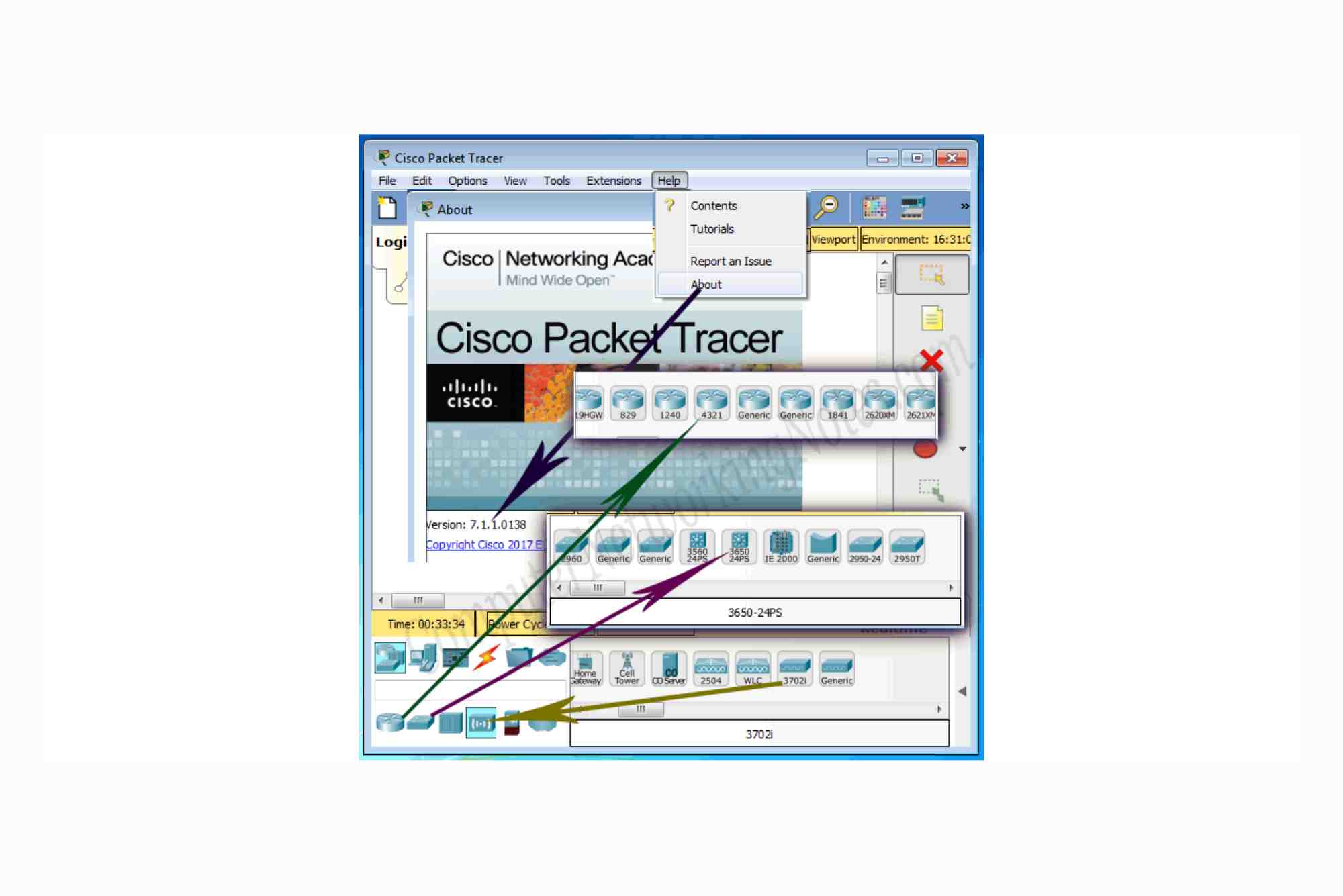
Step-by-Step Cisco Software Download Guide
When working with Cisco network equipment, accessing and managing software updates is essential for security, performance, and compatibility. Whether you’re a seasoned network administrator or new to Cisco’s ecosystem, understanding the correct process for a Cisco software download can save time and prevent installation issues.
This in-depth guide walks you through everything—from account setup to navigating Cisco’s Software Download portal. You’ll also get tips on choosing the right images, licensing, and resolving common issues.
Understanding the Cisco Software Ecosystem
Cisco offers a wide array of software, including firmware for routers and switches, network management tools, collaboration suites like Webex, and security applications such as Cisco Secure Firewall. Each download is tightly controlled to ensure that only authorized users with valid support contracts can access them.
To access most Cisco software downloads, you need a valid Cisco account linked to a service contract or Smart Account. This ensures that you’re downloading legally and are eligible for support and updates.
Creating a Cisco Account
Before you begin, you’ll need a Cisco.com account. This is free and takes just a few minutes to set up.
How to Register for a Cisco Account
- Visit Cisco’s Registration Page.
- Fill out the required information: name, email, company, and location.
- Confirm your email address through the activation link.
- (Optional) Link your Smart Account or service contract for broader download access.
Without a valid service contract, your access to downloads will be limited, typically to publicly available tools or trial versions.

Navigating the Cisco Software Download Portal
Once your account is set up, visit Cisco Software Download to start. The interface is simple, but finding the exact image or software version can be tricky without guidance.
Finding the Right Software
Use the search bar to enter your product name. For example, searching for “Cisco Catalyst 9200” will bring up various firmware versions and related software. You can also use the “Browse All” option to navigate by product categories like “Switches,” “Routers,” or “Collaboration Endpoints.”
Make sure you know your product’s exact model number and software version to avoid downloading the wrong firmware.
Selecting the Right Image
Cisco offers different types of images for its devices:
- Universal Images: These contain all features and require activation keys.
- LAN Base / IP Base / IP Services: These are feature-specific and often version-locked.
- Boot Images: Used primarily for recovery or device initialization.
Always check your current software version and device license level before upgrading.
Verifying Software Compatibility
Before you hit download, confirm that the software version is compatible with your hardware. Cisco provides a Release Notes section on each download page. These notes offer valuable insights like new features, known issues, resolved bugs, and supported hardware.
Downloading the Software
Once you’ve selected your desired image:
- Click the software version you need.
- Review the End User License Agreement (EULA).
- Click Download.
Your browser will begin downloading the .bin, .iso, or .pkg file, depending on the product. For large firmware files, ensure you have a stable internet connection.
Some downloads may be gated. In that case, Cisco will prompt you to log in again or verify contract entitlement.
Uploading Software to Your Device
After downloading the software, you’ll need to transfer it to your Cisco device. The method depends on the type of device you’re working with.
For Switches and Routers
Use TFTP, FTP, SCP, or USB to upload the file.
Use CLI commands like:
copy tftp: flash:boot system flash:<filename>
Save the configuration and reload the device:
write memoryreload
Always back up your existing configuration before performing an upgrade.
For Cisco Unified Communications Manager (CUCM) or Webex
These platforms use web interfaces or custom installers. Always follow Cisco’s software upgrade guides specific to those applications.
Licensing and Activation
Some Cisco software, especially advanced features or add-ons, requires a license. Use the Cisco Smart Licensing portal or Cisco License Registration Portal to activate your license.
You’ll need:
- Product Authorization Key (PAK)
- Device Serial Number
- Cisco Smart Account ID
For devices with Smart Licensing enabled, registration may happen automatically once connected to the internet.
Troubleshooting Cisco Software Download Issues
Access Denied or Entitlement Error
If you’re seeing a “not entitled” message, it means your account doesn’t have permission to access that software. Contact your Cisco partner or administrator to link your account with a valid service contract.
File Corruption or Incomplete Downloads
If your downloaded file won’t load, verify the MD5 checksum listed on the download page. Use checksum verification tools to ensure file integrity before installing.
Browser Problems
Sometimes the download button won’t work in certain browsers due to pop-up blockers or plugin settings. Try switching to another browser like Chrome or Firefox and ensure pop-ups are allowed.
Keeping Software Up to Date
Keeping your Cisco devices updated isn’t just good practice—it’s essential for security and stability. Cisco regularly releases security patches, performance fixes, and feature updates.
You can sign up for notifications via:
- Cisco Bug Search Tool
- Cisco Security Advisories
- Smart Net Total Care (SNTC) for automated update insights
Stay informed and schedule updates during maintenance windows to avoid service disruption.
Downloading and installing Cisco software might seem overwhelming at first, but once you understand the process, it becomes a routine task. With the right Cisco account, proper identification of your device, and a secure method of installation, you’ll ensure your network stays secure and reliable.
FAQs
How do I access Cisco software downloads?
You need a Cisco.com account, often with an active support contract or Smart Account. Go to the Cisco Software Download portal and sign in.
Why am I getting an entitlement error on Cisco downloads?
Entitlement errors occur when your Cisco account isn’t associated with a valid service contract. You may need to contact your Cisco partner to fix this.
Can I download Cisco software without a license?
Some tools and trial versions are freely available, but most firmware and enterprise software require a license or support contract.
How do I find the right firmware version for my device?
Use your device’s model number to search on Cisco’s portal. Always check the Release Notes to confirm compatibility.
Is there a way to automate Cisco software updates?
Yes, you can use Cisco tools like Smart Net Total Care or DNA Center for automated monitoring and updates.