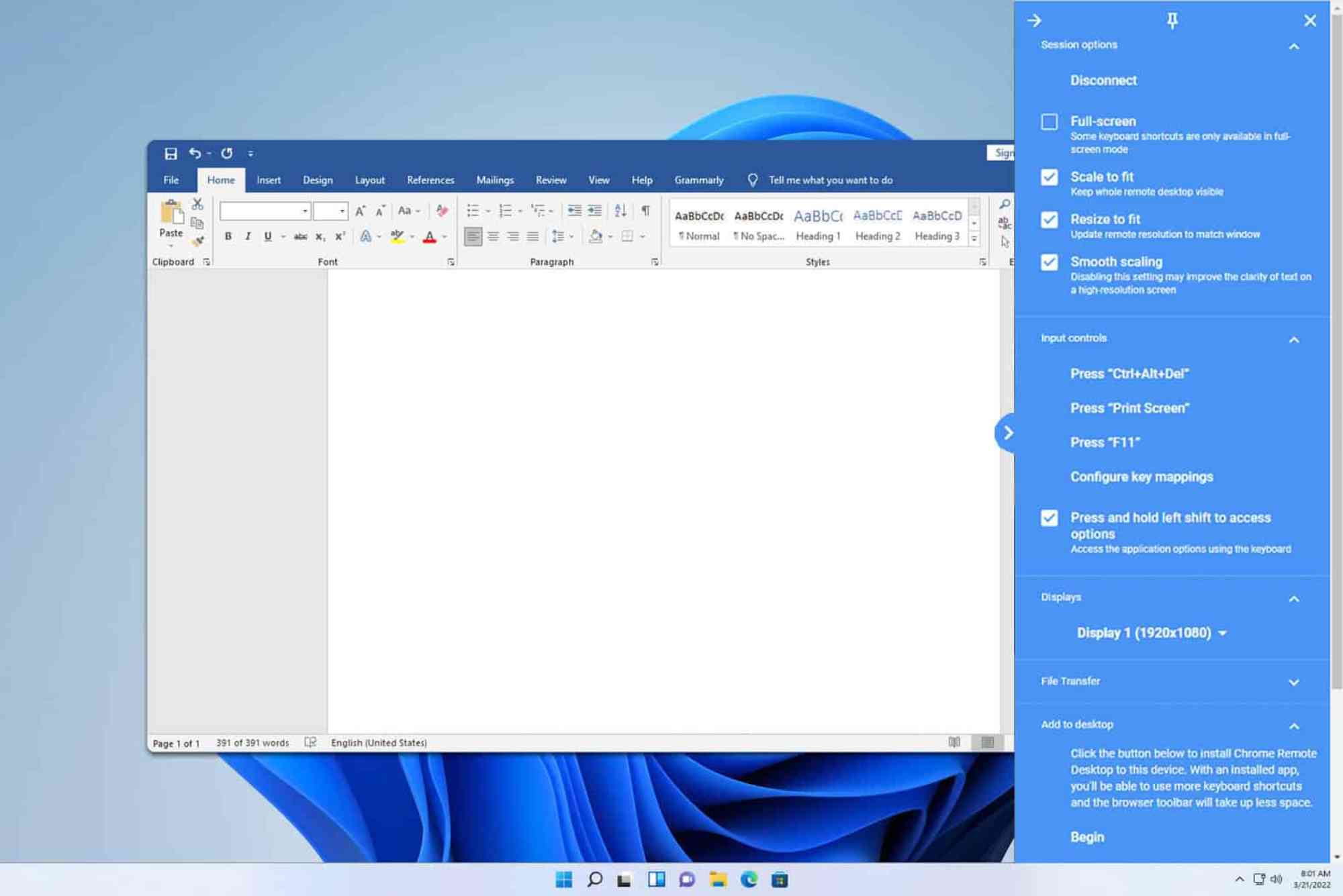
If you’ve ever tried to connect to a remote desktop and suddenly received the error message, “The remote computer disconnected because of licensing protocol,” you’re not alone. This issue often appears when using Windows Remote Desktop Protocol (RDP) and can be frustrating—especially when you’re trying to access critical files or systems remotely.
Fortunately, this is a well-documented issue with proven solutions. In this comprehensive guide, we’ll help you understand why this error happens, how to fix it, and how to prevent it from occurring in the future.
Understanding the Error
Before diving into the solution, it’s important to understand what the error means. The message “The remote computer disconnected because of licensing protocol” refers to a problem in the Remote Desktop licensing mechanism on the host machine.
This mechanism ensures that connections are authorized and within the allowed usage limits. When licensing becomes corrupted, expired, or misconfigured, your RDP session can abruptly terminate before it even begins.
Common Causes
This error can appear due to several reasons:
- Corrupted licensing registry entries
- Outdated or incompatible Remote Desktop client versions
- Misconfigured group policies or licensing settings
- Licensing grace period expiration on the host machine
- Missing or invalid RDP CALs (Client Access Licenses)
Each of these causes can disrupt the handshake between your device and the remote host, triggering the licensing protocol disconnect.

How to Fix “The Remote Computer Disconnected Because of Licensing Protocol”
Solving this error typically involves adjusting settings or clearing corrupted data related to the RDP licensing protocol. Follow these steps carefully, and your remote desktop session should work normally again.
Delete the MSLicensing Registry Key
One of the most effective fixes is to remove the MSLicensing registry key on your local machine. This clears potentially corrupted license data.
- Press Win + R, type
regedit, and press Enter. - Navigate to:
HKEY_LOCAL_MACHINE\SOFTWARE\Microsoft\MSLicensing - Right-click the
MSLicensingfolder and choose Delete. - Close the Registry Editor and reboot your computer.
When you connect again, Windows will recreate this key automatically.
Important: Always back up your registry before making changes. Incorrect edits can cause system issues.
Run Remote Desktop as Administrator
After deleting the registry key, make sure you run Remote Desktop with administrative privileges the first time.
- Click Start and search for “Remote Desktop Connection.”
- Right-click and select Run as Administrator.
- Enter the target computer’s IP or hostname and connect.
Running as administrator ensures the system has permission to recreate licensing entries correctly.
Update RDP Client and Windows
An outdated RDP client may not support the current licensing handshake. Always ensure your system is updated.
- Go to Settings > Windows Update.
- Click Check for updates.
- Install any available updates and restart your PC.
This can also resolve compatibility issues between clients and servers.
Reset Remote Desktop Licensing on Host
If the issue persists, the problem may lie on the server or host machine.
- On the host, open Command Prompt as administrator.
- Run the command:
slmgr.vbs /rearm - Reboot the machine.
This resets the licensing configuration on the server, which can help if the grace period or RDP CAL settings are misbehaving.
Preventing Future Licensing Protocol Errors
Fixing the issue once is great—but avoiding it in the future is even better. Here are several preventative strategies.
Maintain Updated Systems
Regular updates to both the client and host machines reduce compatibility errors. Licensing handshake processes are sometimes updated in newer versions of Windows or RDP.
Monitor Grace Periods
RDS hosts have a licensing grace period (typically 120 days). After this, a valid license server must be configured. Keep track of when the grace period ends and ensure your Remote Desktop Licensing role is active and functioning.
Backup the Registry
After a fresh setup or once the issue is fixed, back up your Windows registry. This allows quick recovery if licensing errors return.
Why This Happens More Often on New Setups
New installations or recently reset systems are more prone to the “remote computer disconnected because of licensing protocol” error. This is often because the licensing registry is freshly created or missing entries. Without administrative permission, the client cannot create the necessary keys, causing the RDP handshake to fail.
Similarly, virtual machines (VMs) that are cloned may have mismatched SIDs or licensing keys, increasing the chances of protocol conflicts.
Encountering the error “The remote computer disconnected because of licensing protocol” can stop your workflow dead in its tracks. But with the right approach—clearing corrupted registry entries, updating your RDP client, and verifying host-side licensing—you can resolve the issue quickly.
If you’re managing multiple machines or remote environments, consider setting up proper RDS Licensing servers and regularly backing up your systems.
Need help fixing persistent RDP issues or managing licensing servers?
Contact our remote support team today—we’ll help you get connected without errors.
FAQs About Licensing Protocol Disconnect
Why does Remote Desktop disconnect because of licensing protocol?
This happens when the client or host licensing information is corrupted or invalid. It’s common in new or misconfigured setups.
How do I reset the Remote Desktop licensing on Windows?
You can delete the MSLicensing registry key on the client and use slmgr.vbs /rearm on the host to reset licensing.
Can Windows updates cause this error?
Yes, after certain updates, especially major builds, licensing protocols may be reset or changed, requiring reinitialization.
Is this error related to RDP CALs?
Absolutely. If the Remote Desktop Services (RDS) host is out of valid Client Access Licenses, new connections may be refused with this message.
Does this affect Windows Home edition?
Windows Home does not support RDP hosting. This error is more common on Pro, Enterprise, and Server editions that use RDP as hosts.