
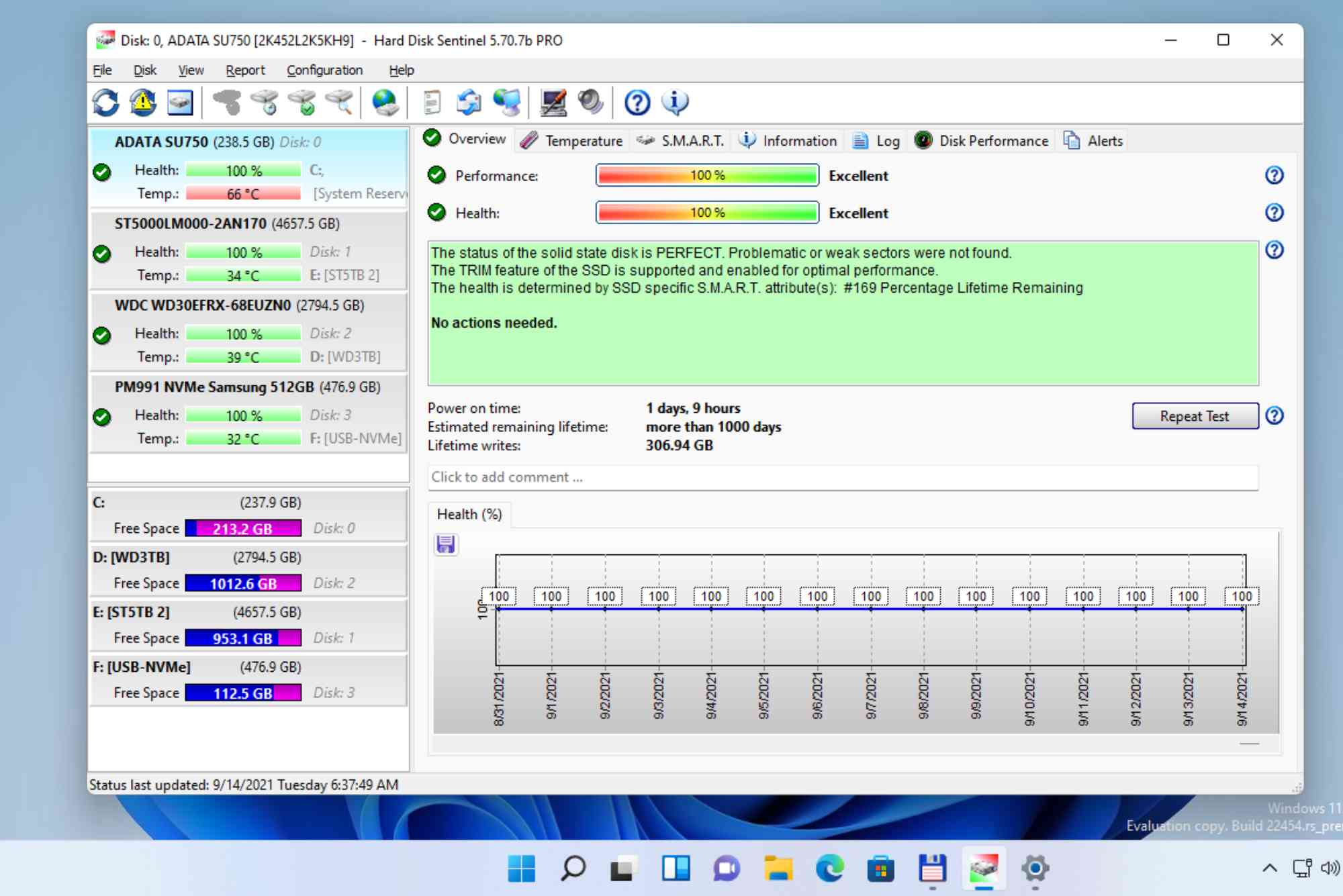
Your hard drive is the heart of your computer. It stores your files, programs, operating system—everything. If it fails, you risk losing it all. That’s why it’s essential to test hard drive health regularly. This guide walks you through simple, effective ways to check your drive’s condition before problems arise.
Whether you’re on Windows, Mac, or using external drives, this quick guide will help you understand the tools, signs, and best practices to keep your storage running smoothly.
Why You Should Test Hard Drive Health
Hard drives, like all hardware, degrade over time. Failing to monitor them can lead to sudden crashes and lost data. Testing your hard drive health can:
- Prevent data loss
- Improve system performance
- Extend drive lifespan
- Alert you early to potential failures
Regular testing puts you in control and helps you act before problems become irreversible.
Signs Your Hard Drive Might Be Failing
Before diving into tools, it’s important to recognize common red flags that may indicate poor drive health:
Frequent Freezing or Crashing
If your computer freezes or crashes without warning, the hard drive might be the culprit.

Clicking or Grinding Noises
Unusual noises, especially clicking, suggest mechanical failure in traditional HDDs.
Corrupted Files
If files start to go missing or become unreadable, it’s a warning sign worth investigating.
Long Boot Times
A drive that’s slow to load could be struggling to read or write data efficiently.
How to Test Hard Drive Health on Windows
Windows offers several built-in and third-party tools to help monitor your drive.
Use Windows CHKDSK
CHKDSK scans your hard drive for file system errors and bad sectors.
- Open Command Prompt as administrator
- Type:
chkdsk C: /f /r - Press Enter and restart your PC
This command checks and fixes errors. It may take some time, depending on drive size.
Check S.M.A.R.T. Status with WMIC
S.M.A.R.T. (Self-Monitoring, Analysis, and Reporting Technology) provides insight into drive health.
- Open Command Prompt
- Type:
wmic diskdrive get status - Look for “OK” or “Pred Fail” next to each drive
If you see “Pred Fail,” consider backing up immediately and replacing the drive.
Use CrystalDiskInfo
CrystalDiskInfo is a free, user-friendly tool that provides real-time data.
- Download and install from the official website
- Launch the program
- Review the drive health status, temperature, and S.M.A.R.T. attributes
This tool is ideal for ongoing monitoring, especially for older drives.
How to Test Hard Drive Health on Mac
macOS also has built-in utilities and third-party options for monitoring drives.
Use Disk Utility
Disk Utility can scan and repair hard drive errors.
- Open Applications > Utilities > Disk Utility
- Select the drive from the sidebar
- Click “First Aid” and run it
It checks the file system and fixes minor issues.
Use Terminal for S.M.A.R.T. Data
You can view S.M.A.R.T. status in the Terminal.
- Open Terminal
- Type:
diskutil info disk0 | grep SMART - Look for “SMART Status: Verified”
A “Failing” status means you should back up and replace the drive soon.
Consider DriveDx
DriveDx is a premium app offering in-depth drive diagnostics.
- Install DriveDx from a verified source
- Run a scan for real-time S.M.A.R.T. data and error history
- Set alerts for early warning signs
Although it’s not free, it’s a favorite among Mac users who want peace of mind.
Testing External Drives
External drives can fail too, especially after years of use. You can test them using the same tools:
- Windows: CHKDSK, CrystalDiskInfo
- Mac: Disk Utility, DriveDx
Make sure the drive is connected properly before running tests.
Also, look out for sluggish file transfers or disconnection issues—both hint at declining health.
How Often Should You Test?
Ideally, test hard drive health:
- Monthly, if you rely on your system for work or critical data
- Quarterly, for personal or secondary devices
- Immediately, if you notice unusual behavior
Combine routine testing with regular backups to stay protected.
Best Practices for Hard Drive Longevity
While no drive lasts forever, proper care can delay failure:
- Keep your system cool; heat shortens drive life
- Use a surge protector to prevent electrical damage
- Safely eject external drives
- Avoid sudden power-offs
- Back up files regularly
Following these tips, along with regular health checks, helps extend your drive’s usable life.
What to Do If Your Drive Fails a Test
A failed health test doesn’t always mean immediate failure—but it does mean action is required.
Backup Immediately
Copy important files to a cloud service or another drive.
Replace the Drive
If your tests show “Pred Fail,” replace it as soon as possible to avoid total loss.
Use Data Recovery Tools
If your drive is already inaccessible, tools like Recuva or Disk Drill might help. However, success isn’t guaranteed.
When in doubt, consult a professional data recovery service.
Frequently Asked Questions
How do I know if my hard drive is failing?
Common signs include slow performance, corrupted files, strange noises, and system crashes. Run S.M.A.R.T. tests to confirm.
Can I test hard drive health without opening my computer?
Yes. Use software tools like CrystalDiskInfo (Windows) or DriveDx (Mac). These give detailed diagnostics without physical access.
Is it safe to use CHKDSK?
Yes, CHKDSK is a safe and built-in utility. It helps fix file system issues and locate bad sectors.
How long do hard drives last?
HDDs typically last 3–5 years, while SSDs may last up to 10. Usage, temperature, and quality affect lifespan.
Does a failing hard drive affect performance?
Yes. Slower boot times, freezing, and unresponsive applications often indicate hard drive problems.
Take Control of Your Data
Your hard drive’s health directly impacts your system’s performance and your data’s safety. With the right tools and a regular testing schedule, you can detect issues before they become disasters.