
What Is Intel Rapid Storage Technology and How Does It Work?
Intel Rapid Storage Technology (IRST) is a powerful solution designed to improve storage performance and reliability in modern computers. It especially benefits systems using SATA-based storage devices, such as hard drives, solid-state drives (SSDs), or both in combination. By installing the Intel Rapid Storage Technology driver, users can unlock features like faster data access, RAID support, and increased system responsiveness.
In this guide, we’ll break down what Intel Rapid Storage Technology is, how it works, and why it matters for your PC. Whether you’re a casual user or a PC builder, understanding this technology can help you make smarter hardware and software decisions.
How Intel Rapid Storage Technology Works
Intel Rapid Storage Technology acts as a bridge between your computer’s operating system and the storage hardware. It optimizes how your system reads and writes data, especially when using multiple drives or RAID configurations.
What Is the Intel Rapid Storage Technology Driver?
The Intel Rapid Storage Technology driver is software that enables your Windows OS to communicate more efficiently with your SATA storage devices. It’s a crucial component for activating IRST features like caching, RAID support, and enhanced power management.
Installing this driver can result in significant improvements in boot time, data transfer speed, and even battery life on laptops.
Key Features of Intel Rapid Storage Technology
Faster Data Access with Smart Caching
Intel RST uses an SSD as a cache for your frequently used files. This means that instead of pulling data from a slower hard drive every time, your system retrieves it quickly from the faster SSD cache.

This setup—known as Intel Smart Response Technology—gives you SSD-like performance without needing to store all your files on the SSD.
RAID Support for Data Redundancy and Performance
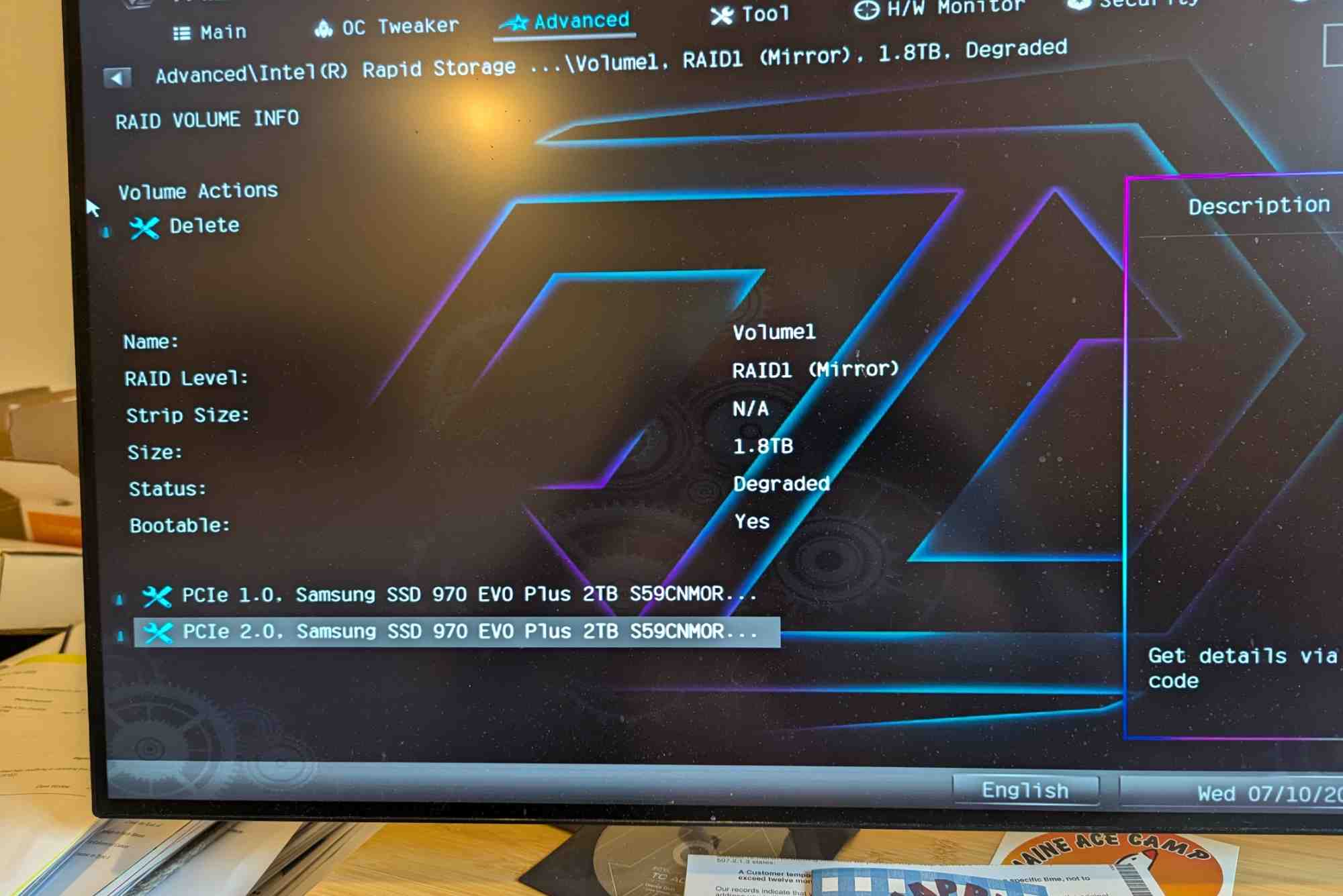
Intel RST allows you to configure your drives in RAID (Redundant Array of Independent Disks). This can:
- Improve data read/write speeds (RAID 0)
- Provide fault tolerance in case of a drive failure (RAID 1 or 5)
- Enable recovery from hardware issues without data loss
Setting up RAID requires at least two drives and a compatible chipset, but the benefits can be substantial for both personal and enterprise use.
Power Efficiency and Battery Optimization
On mobile devices, IRST can help manage power more effectively by reducing the number of read/write cycles. It allows your system to enter low-power states more frequently, extending battery life.
Enhanced System Responsiveness
When installed correctly, the Intel Rapid Storage Technology driver reduces system lag and improves multitasking performance. This is especially useful for heavy workloads like video editing, gaming, and software development.
Why You Should Install the Intel Rapid Storage Technology Driver
Improved Stability and Speed
The driver ensures optimal communication between your OS and storage devices, eliminating bottlenecks that could slow down your system.
Compatibility with Windows and BIOS Settings
Many modern BIOS setups include Intel RST settings. To use IRST features, especially RAID, you must enable the correct storage mode (usually “RAID” or “Intel RST”) in your BIOS and install the latest Intel driver in Windows.
Automatic Drive Monitoring
Intel RST software includes a monitoring dashboard that alerts users to potential drive issues before they become critical. This is especially useful in enterprise environments where data integrity is vital.
How to Install the Intel Rapid Storage Technology Driver
Check Compatibility
First, make sure your system supports Intel RST. You’ll need:
- A compatible Intel chipset (e.g., Intel 8 Series or newer)
- SATA storage devices
- A Windows OS (Windows 10 or 11 preferred)
You can verify your chipset model using Intel’s Processor Identification Utility.
Download the Driver
Go to the official Intel Download Center and search for “Intel Rapid Storage Technology driver.” Download the latest version compatible with your OS.
Install and Reboot
Run the installer, follow the prompts, and restart your system. You should now see an Intel RST icon in your system tray. From there, you can configure caching, RAID arrays, and more.
When You Should Avoid Installing It
While IRST is beneficial for many users, it may not be ideal if:
- You’re using only a single SSD and don’t need RAID or caching
- Your system already uses NVMe drives, which don’t benefit from IRST
- You experience driver conflicts with other storage software
Always check your manufacturer’s guidelines before installing IRST.
Benefits of Using the Intel Rapid Storage Technology Driver
- Speed: Faster boot and file access times
- Reliability: RAID options protect data from hardware failure
- Efficiency: Better power management for laptops
- Ease of Use: Built-in interface for monitoring and configuration
Common Myths and Misunderstandings
“It’s Only for RAID”
False. While RAID is a major feature, Intel RST also boosts performance on non-RAID setups through caching and efficient data handling.
“It Slows Down SSDs”
Incorrect. IRST improves performance by streamlining communication between the OS and your SSD/HDD. It doesn’t interfere with NVMe SSDs, which operate on a different protocol.
“Only Professionals Need It”
Not true. Home users, gamers, and content creators can all benefit from improved speed and reliability.
FAQs: Intel Rapid Storage Technology
What happens if I uninstall the Intel Rapid Storage Technology driver?
Your system may revert to the default AHCI driver. If you were using RAID, you risk losing your RAID configuration and possibly data. Always back up first.
Is Intel Rapid Storage Technology compatible with Windows 11?
Yes. Intel provides updated drivers compatible with Windows 10 and 11. Make sure to download the version specific to your OS and chipset.
How do I know if IRST is working on my system?
Open the Intel RST application from your system tray. If it’s active, you’ll see drive status, caching options, and RAID settings.
Can I use IRST with NVMe drives?
No. IRST primarily supports SATA drives. NVMe drives operate on a different protocol (PCIe) and are managed by different drivers.
Is IRST necessary if I already use an SSD?
Not always. If you’re using a single NVMe SSD, you likely won’t benefit. But if you have both an HDD and SSD, IRST can improve performance via caching.
Alternatives to Intel Rapid Storage Technology
If your system isn’t compatible with Intel RST or you’re using non-Intel hardware, consider these alternatives:
- AMD StoreMI (for AMD systems)
- Samsung Magician Software (for Samsung SSDs)
- Windows Storage Spaces (built into Windows 10/11)
These tools offer similar performance or redundancy features and are optimized for different hardware setups.
Real-World Use Cases
PC Gaming
Gamers often use IRST to create RAID 0 arrays for faster load times in large open-world games.
Content Creation
Video editors and designers benefit from SSD caching and fast RAID configurations, reducing render and load times.
Office Productivity
Business users enjoy system stability and backup protection through RAID 1 or RAID 5 setups—ensuring critical data isn’t lost.
Troubleshooting Intel RST Issues
- Can’t detect drives? Ensure BIOS is set to RAID mode and that your SATA controller is compatible.
- Slow performance? Update your Intel RST driver to the latest version.
- Frequent crashes? Consider disabling caching or checking drive health using Intel’s dashboard or third-party tools.
Should You Use Intel Rapid Storage Technology?
Intel Rapid Storage Technology is a valuable tool for improving system performance, protecting data, and managing storage configurations. While not everyone needs it—especially if using a single NVMe SSD—many users with mixed storage setups will see clear benefits.