
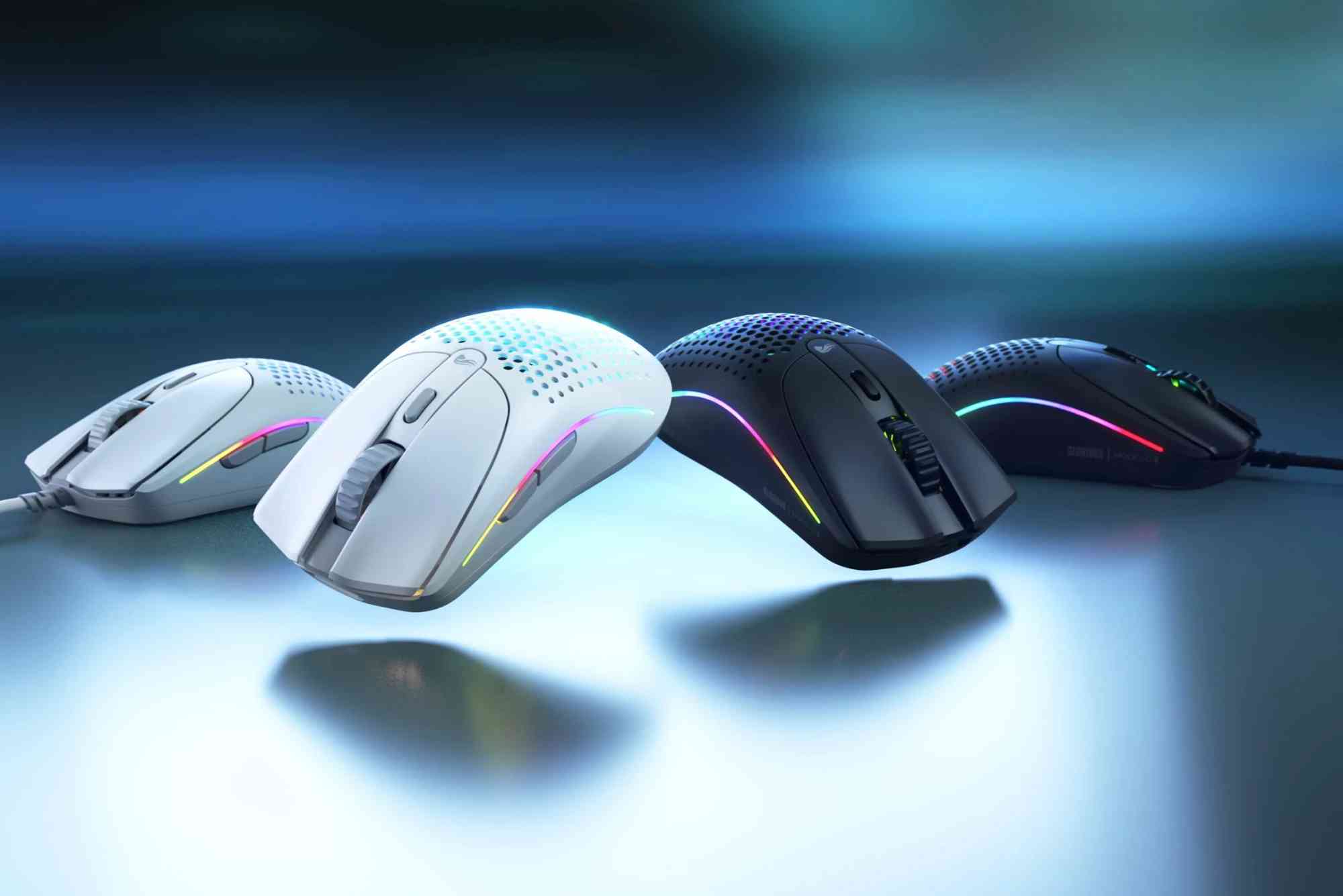
Everything You Need to Know About Glorious Model O Software
If you’re a gamer or performance-focused PC user, chances are you’ve heard of the Glorious Model O—a lightweight, ultra-responsive gaming mouse that’s made waves in the esports community. But hardware alone doesn’t unlock its full potential. The real secret lies in the Glorious Model O software, a powerful utility that enables precision customization and performance tuning.
This comprehensive guide will walk you through everything you need to know about the Glorious Model O software—from installation to advanced settings. Whether you’re new to Glorious products or looking to optimize your gaming experience, this article is your go-to resource.
What Is Glorious Model O Software?
The Glorious Model O software is a Windows-based application designed specifically for the Glorious Model O mouse. It allows users to customize nearly every aspect of their mouse, including DPI settings, polling rate, RGB lighting, macros, debounce time, and more.
Unlike many third-party drivers or generic tools, this software is tailor-made for the Model O and ensures seamless integration with its firmware. It’s essential for gamers who demand total control over their hardware performance.
How to Download and Install Glorious Model O Software
Getting started with the software is easy. Head to the official Glorious website and navigate to the “Downloads” section. Select the version compatible with your mouse (Model O, Model O-, or Model D), and follow the on-screen instructions to install.
After installation, restart your PC to allow the software to fully recognize the device. Make sure your mouse firmware is up to date—this can usually be done from within the software interface.

User Interface Overview
Upon launching the software, you’ll notice a clean, user-friendly dashboard. Everything is organized into separate tabs for ease of use. Here’s a quick look at the core sections:
DPI Settings
The DPI tab lets you create up to six customizable DPI profiles. These can be color-coded, which is useful when switching between speeds for different games or applications.
Lighting Control
The RGB lighting section allows for deep personalization. Choose from presets like Breathing, Single Color, Tail, or Rave. You can also create custom color effects using a simple editor.
Button Assignment
Each button on the Model O can be reassigned for various functions, including mouse actions, keyboard keys, multimedia controls, or even recorded macros.
Performance Options
This tab includes important performance tweaks like debounce time (adjustable between 0 to 16ms), polling rate (125Hz to 1000Hz), and lift-off distance. Fine-tuning these settings can significantly enhance response time and tracking.
Why Glorious Model O Software Is a Must-Have
Without the software, you’re only accessing half of what the Model O is capable of. Here’s why using the Glorious Model O software is essential:
Precision Tuning
From FPS games to high-speed productivity tasks, everyone has different sensitivity preferences. The software allows you to tailor DPI settings down to single-digit increments.
Competitive Edge
In esports, milliseconds matter. Lowering debounce time and maximizing polling rate can shave precious response time off your clicks—giving you a noticeable edge in competitive gameplay.
Lighting Customization
RGB might not affect performance, but it certainly adds to the experience. The software gives you total control over aesthetic customization, allowing your setup to match your personality or team colors.
Macro Recording
For MMORPGs or productivity users, macros can streamline repetitive tasks. Record and bind complex sequences to a single button and execute them flawlessly in real-time.
Common Issues and Troubleshooting
Despite its advantages, some users encounter problems like the software not detecting the mouse or settings not saving. Most issues are simple to fix.
Ensure your mouse is connected directly to a USB port (avoid hubs), and always run the software as an administrator. Keeping your firmware and drivers updated can also resolve many compatibility problems.
If problems persist, a fresh reinstall of the software often clears up bugs. Glorious has an active support forum where many users share solutions to niche problems.
Tips for Getting the Most Out of Glorious Model O Software
Start by setting a comfortable base DPI—800 to 1200 is ideal for most FPS players. Then, customize a higher DPI for sniping or precision work and a lower one for navigation or strategy games.
Experiment with debounce time; a setting between 2ms to 4ms offers a good balance between speed and accidental double-clicks. Only go lower if you’re playing at the highest competitive levels and are confident in your click control.
For lighting, consider using static single-color modes to reduce system resource use, especially on lower-end PCs.
Compatibility and System Requirements
The software is currently available for Windows only, with no native support for macOS or Linux. It supports Windows 7 through Windows 11.
Make sure your system has at least 100MB of free storage and is not running background software that could conflict with peripheral drivers, like some antivirus programs.
Alternatives to Glorious Model O Software
Although the native software is the most optimized option, advanced users sometimes explore third-party tools like OpenRGB for unified lighting control. However, using unofficial tools may void warranties or cause firmware issues, so proceed with caution.
For those who prefer plug-and-play functionality, the mouse can be used without the software at default settings—but you’ll miss out on all the customization benefits.
FAQs
Is Glorious Model O software safe to use?
Yes, it’s 100% safe when downloaded from the official Glorious PC Gaming Race website. Avoid unofficial sources to prevent malware risks.
Why is my Glorious Model O not showing in the software?
Try reconnecting the mouse, using a different USB port, or running the software as an administrator. Also, check for firmware updates.
Can I use the software on a Mac?
Unfortunately, the software is not currently compatible with macOS. Some users use Windows emulators, but this is not officially supported.
How do I reset my Glorious Model O settings?
You can restore default settings by holding down the DPI button and the bottom button (beneath the mouse) for a few seconds.
Does the software work for Model O Wireless?
No, the wired and wireless versions have separate software. Make sure to download the correct one for your specific model.