How to Connect Fitbit with Google Fit Easily
Staying healthy and tracking your progress has become easier with fitness apps. But what if you’re using both Fitbit and Google Fit and want to combine your health data in one place? If you’re searching for a simple way to make Fitbit connect to Google Fit, you’re not alone. Many fitness enthusiasts face this challenge since Fitbit doesn’t natively support Google Fit integration.
Luckily, there are easy solutions. In this article, we’ll walk you through how to sync Fitbit with Google Fit, why it matters, and which tools can help.
Why Connect Fitbit to Google Fit?
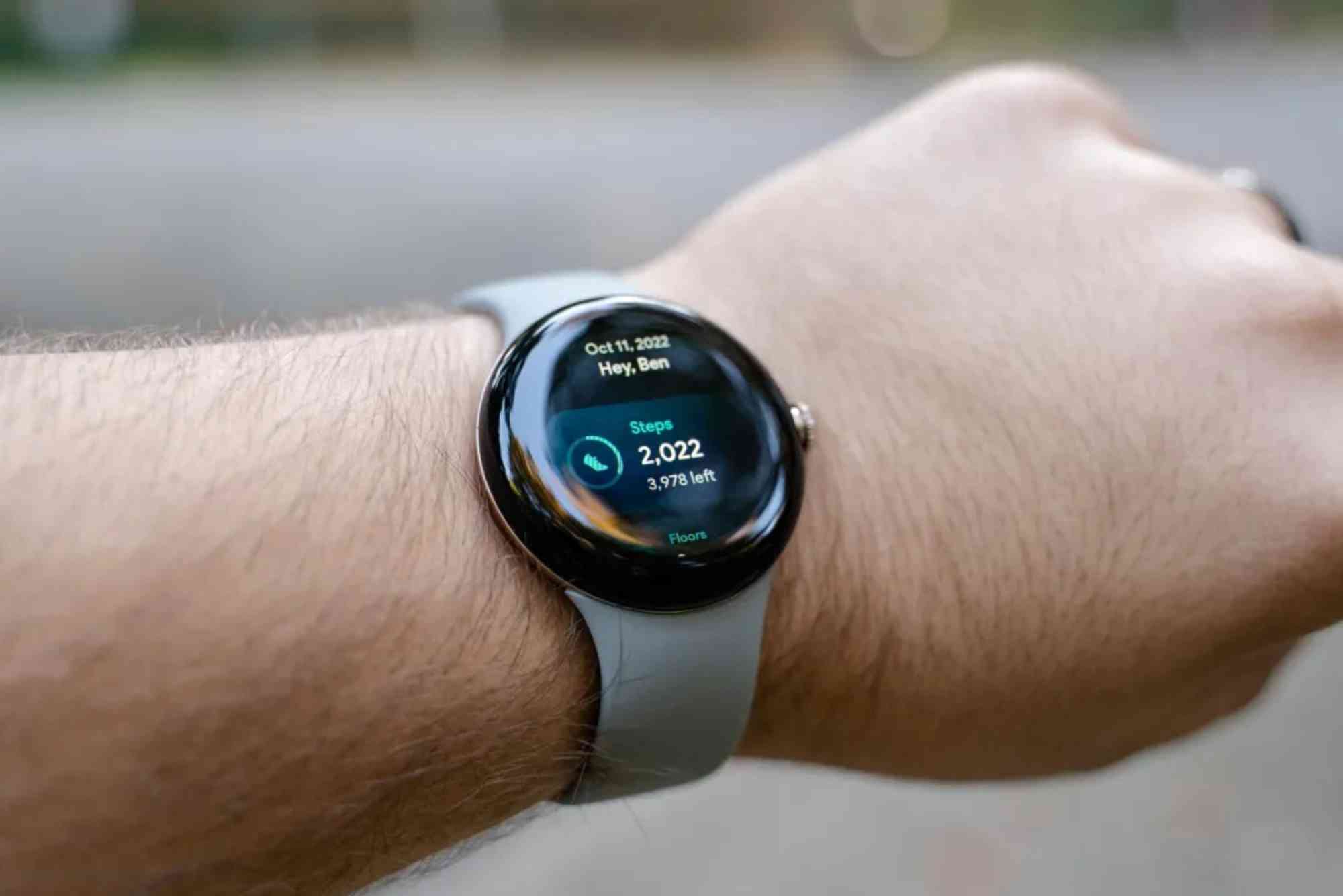
Both Fitbit and Google Fit are powerful fitness tracking platforms. Fitbit is well-known for its accurate tracking of steps, heart rate, sleep, and workouts. Google Fit, on the other hand, is great for pulling together health data from various sources in a single dashboard.
When you connect Fitbit to Google Fit, you:
- Get a unified view of your fitness data
- Sync steps, workouts, and heart rate across apps
- Enable better integration with third-party health and fitness services that use Google Fit
- Avoid switching between multiple apps to track progress
Is There a Direct Way to Connect Fitbit to Google Fit?
Here’s the short answer: No, Fitbit does not officially support Google Fit.
Since Google owns Fitbit, many expected native syncing between the two platforms. However, the reality is different. As of now, the Fitbit app doesn’t sync directly with Google Fit.

But don’t worry—several third-party apps bridge the gap between Fitbit and Google Fit. These tools act as a middleman, automatically transferring data between the two apps.
Best Ways to Sync Fitbit with Google Fit
To make Fitbit connect to Google Fit, you need to use a trusted third-party app. Some of the most reliable options include:
Health Connect by Android
Health Connect is a tool developed by Google to make health data integration easier across different apps. Recently, Fitbit started supporting Health Connect, which makes syncing simpler.
Here’s how to use Health Connect:
- Download the Health Connect app from the Google Play Store.
- Open Fitbit and go to Settings > Health Connect.
- Grant the necessary permissions for data sharing.
- Open Google Fit and do the same—enable access through Health Connect.
- Now, data like steps, calories, and heart rate will sync between Fitbit and Google Fit via Health Connect.
This method is increasingly becoming the default way to sync health data across Android apps. It’s secure and supported by Google, making it the most reliable method as of now.
Using Third-Party Sync Apps
If Health Connect isn’t available on your device, or you want additional control, you can use a third-party app. The most popular options include:
FitToFit
This app is built specifically to sync Fitbit data with Google Fit.
Steps to use FitToFit:
- Download FitToFit from the Play Store.
- Log into your Fitbit account within the app.
- Select which data types (steps, distance, calories, etc.) you want to sync.
- Tap “Transfer Data” or enable auto-sync.
FitToFit runs in the background and keeps your Google Fit dashboard updated with the latest Fitbit stats.
Health Sync
Another reliable app, Health Sync supports syncing between various platforms including Fitbit, Samsung Health, and Google Fit.
Steps to use Health Sync:
- Install Health Sync from the Play Store.
- Set Google Fit as the target app.
- Set Fitbit as the source app.
- Grant all permissions requested.
- Choose your sync frequency and data types.
This app is user-friendly and offers more customization, but it may come with a small subscription fee after the trial period.
What Data Can Be Synced Between Fitbit and Google Fit?
The specific data you can sync depends on the sync tool you use and the permissions granted. Typically, the following data is supported:
- Steps
- Distance walked or run
- Calories burned
- Active minutes
- Heart rate
- Sleep duration (limited support)
- Weight (if logged manually)
Keep in mind that data might not transfer in real-time. Some apps sync hourly, while others update every few minutes.
Tips for a Smooth Fitbit to Google Fit Sync
To make sure your Fitbit connect to Google Fit process is seamless, follow these tips:
- Always keep both Fitbit and Google Fit apps updated.
- Enable battery optimization exceptions for the sync app so it can work in the background.
- Review app permissions regularly to make sure they’re not disabled by Android updates.
- Avoid syncing the same data type from multiple sources to Google Fit. This prevents duplication and inaccuracies.
Benefits of Integrating Fitbit with Google Fit
Combining Fitbit data with Google Fit brings multiple benefits, especially for users who rely on Google’s ecosystem.
- Better Compatibility: Many health apps only connect with Google Fit. By syncing Fitbit, you unlock access to those apps.
- Unified Insights: Google Fit’s dashboard gives a holistic view of your wellness journey.
- Long-Term Tracking: Some users prefer Google Fit for storing multi-year data history.
- Data Backup: Even if you stop using Fitbit in the future, your data can still live on in Google Fit.
Common Challenges and Troubleshooting
You might encounter some roadblocks when trying to sync Fitbit to Google Fit. Here’s how to solve them:
- Data Not Syncing: Recheck permissions in both Fitbit and sync apps. Also, force sync manually.
- Missing Metrics: Some data types like sleep and heart rate may not sync depending on the app.
- Battery Drain: Some sync tools run in the background and can impact battery. Limit background activity to preserve power.
- Duplicate Entries: Disable syncing from multiple apps or sources to avoid double-counting steps or calories.
Although Fitbit doesn’t support Google Fit natively, there are easy ways to make them work together. By using Health Connect, FitToFit, or Health Sync, you can sync your Fitbit data to Google Fit in just a few steps.
Whether you want all your wellness data in one place, or need Fitbit to work with other Google Fit-compatible apps, syncing helps you get the most out of your fitness journey.
FAQs
How do I sync my Fitbit data with Google Fit?
You can use Health Connect or third-party apps like FitToFit or Health Sync to transfer your Fitbit data into Google Fit.
Can Fitbit connect to Google Fit directly?
No, Fitbit does not directly support Google Fit. You need to use tools like Health Connect or third-party sync apps.
Is Health Connect available on all Android devices?
Most Android devices with Android 10 or above support Health Connect, but you may need to install it from the Play Store.
Why isn’t my Fitbit data showing up in Google Fit?
Make sure all permissions are granted, and that sync settings are enabled in your sync app. Restarting your phone also helps.
Is it safe to use third-party apps to sync Fitbit with Google Fit?
Yes, but choose reputable apps like Health Sync or FitToFit. Always review privacy policies before granting permissions.