
How to Log In and Manage Your DHA License Account
Navigating the Dubai Health Authority (DHA) portal can be overwhelming, especially for new healthcare professionals looking to manage their DHA license. Whether you’re applying for a new license, renewing an existing one, or simply accessing your professional dashboard, understanding the DHA license login process is crucial.
In this guide, we’ll walk you through everything you need to know about logging into your DHA license account, managing your credentials, resetting passwords, and troubleshooting common issues. This article is tailored for doctors, nurses, pharmacists, and other healthcare workers registered with the DHA.
Understanding the DHA License System
Before diving into the login process, it’s important to understand what the DHA license system is and why it’s necessary. The DHA license is a mandatory credential for healthcare professionals who wish to work legally in Dubai. Whether you’re applying for the first time or managing a renewal, the DHA’s online portal is where all activities are carried out. The portal is designed to streamline professional registrations, exam applications, dataflow processing, and license renewals.
The DHA license portal is accessible through the Sheryan system, an integrated digital platform that helps professionals and healthcare facilities manage regulatory requirements. Knowing how to access this platform correctly is the first step toward a seamless healthcare career in Dubai.
How to Access the DHA License Login Page
To begin, visit the official Dubai Health Authority website. Look for the “Sheryan” login button or navigate directly to the Sheryan licensing portal via. This portal is optimized for both desktop and mobile devices, allowing you to log in conveniently from any location.
You’ll see two main login options: one for individual healthcare professionals and one for healthcare facilities or institutions. Most users will select the “Professional” login if they are managing their own license.

Step-by-Step DHA License Login Process
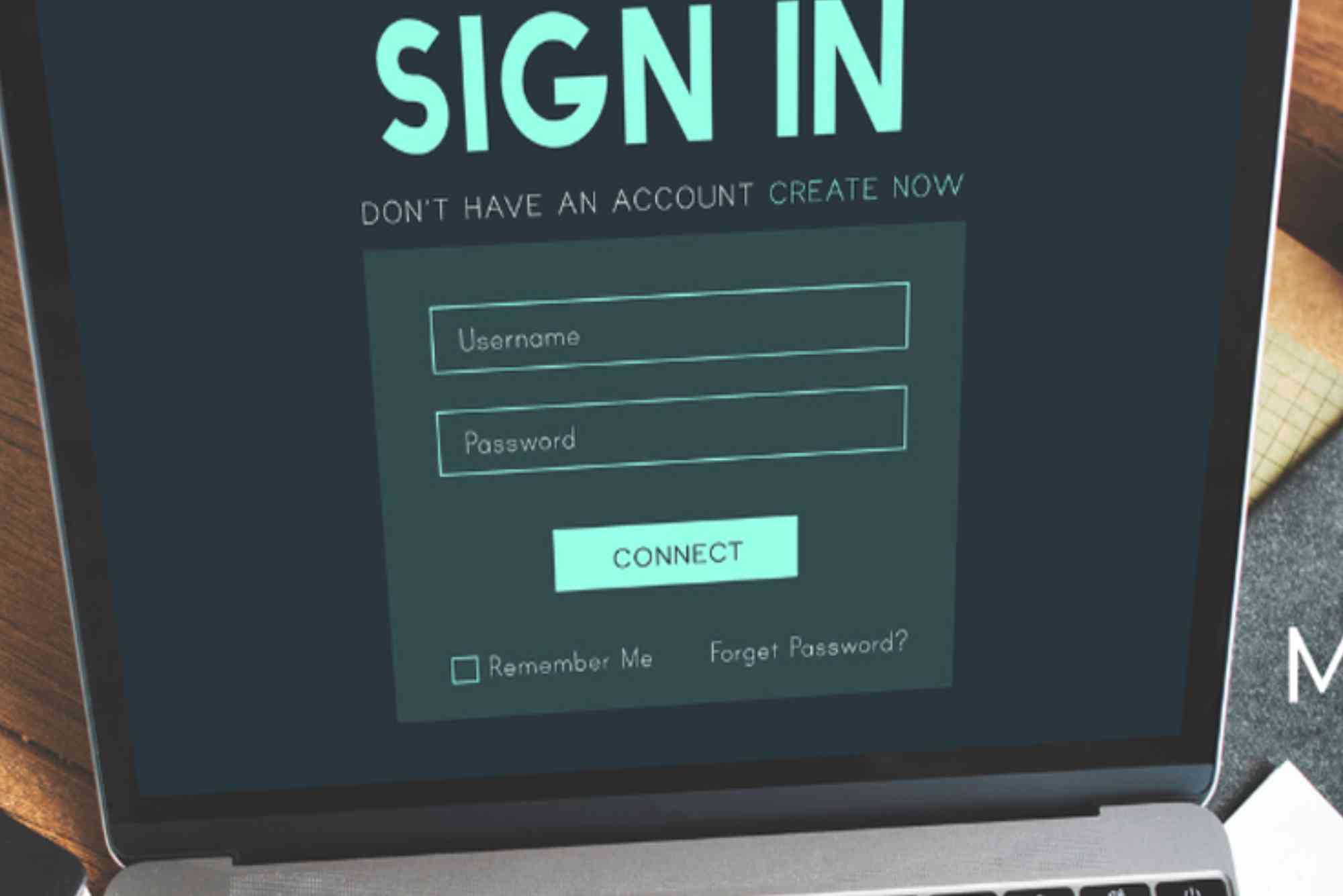
To access your account, follow these straightforward steps. First, enter your username or registered email address. This should be the same email you used when registering with DHA or applying for your license. Next, input your password. If you’re using the system for the first time, check your inbox for temporary login credentials that DHA may have emailed after your initial application. Once logged in, you’ll be directed to your professional dashboard, where you can view your application status, update documents, or submit renewals.
If you’ve forgotten your password, click on the “Forgot Password?” link. DHA will prompt you to enter your registered email address and will send a reset link. Make sure to check both your inbox and spam folder.
Managing Your DHA License Account
Once logged in, the dashboard allows you to manage various aspects of your license. You can update your personal details, change your specialization (with appropriate documents), upload CPD (Continuing Professional Development) certificates, and track exam dates.
Your dashboard also includes notifications and alerts. Pay close attention to renewal dates, as missing them can result in fines or deactivation of your license. Renewals usually require uploading new documents, proof of employment, and payment of fees.
To renew your license, select the renewal tab from your dashboard. The system will prompt you to update necessary documents such as Emirates ID, passport, professional certifications, and employment contracts. After uploading and verifying all requirements, submit the application for review. You’ll be notified via email once the renewal is approved.
Common DHA License Login Issues and Solutions
Many users experience login issues such as incorrect passwords, locked accounts, or slow system performance. Here are a few common issues and how to solve them. If you’re entering the correct email but still can’t log in, try clearing your browser cache or switching to a different browser. DHA’s portal works best with Chrome and Firefox.
If your account is locked due to multiple failed login attempts, wait 15 minutes before trying again or use the “Forgot Password” feature. In cases where none of these steps work, you can contact DHA support at info@dha.gov.ae or call their helpdesk. They usually respond within 24–48 hours.
Another issue users face is not receiving verification emails. Ensure your email inbox isn’t full, and check the spam folder. It’s a good idea to whitelist DHA’s official domain in your email settings to avoid missing critical updates.
Keeping Your Credentials Secure
Cybersecurity is a serious concern, especially for professionals working in regulated sectors like healthcare. Avoid using public Wi-Fi to access your DHA account. Always log out after completing tasks, and change your password periodically.
Make sure your email linked to the DHA account is secure and has two-factor authentication enabled. If you suspect your account has been compromised, contact DHA immediately and request a password reset. Also, monitor your account activity regularly for any unauthorized changes.
Updating Profile Information After Login
You may need to update your phone number, address, or professional details. To do this, log in and navigate to the “Profile” section. Edit the fields as necessary and upload any supporting documentation. DHA usually verifies changes within 5–7 business days.
It’s essential to keep your profile updated because outdated information can affect your ability to receive timely notifications or renew your license without delays.
Renewing Your DHA License on Time
The renewal process should be started at least two months before the license expiry date. Late renewals incur fines and could even lead to license suspension. The system will notify you when your license is nearing expiration, but it’s best to mark your own calendar as well.
Make sure all your CPD requirements are fulfilled. You can upload your CPD certificates directly through your dashboard. Failure to meet CPD criteria may delay the renewal or result in application rejection.
DHA Login for New Applicants
If you’re applying for the first time, you’ll need to create an account on the Sheryan system. After successful registration, you’ll receive an activation link in your email. Once your account is activated, you can proceed with submitting documents, scheduling your Prometric exam, and applying for the license.
New applicants must complete the Primary Source Verification (PSV) process via DataFlow. Make sure your documents are in the correct format (PDF) and clearly legible. This verification process typically takes 2–4 weeks.
What to Do If You Can’t Access the Dashboard
If you’re having trouble accessing your dashboard despite successful login, try the following solutions. First, ensure you’re using a supported browser and your internet connection is stable. Disable any browser extensions or ad blockers that might be interfering.
If the page is stuck loading or throwing errors, clear your browser cache and cookies. Alternatively, try accessing the portal from a different device. If the issue persists, report it using the “Technical Support” link at the bottom of the Sheryan login page.
DHA License Login Support
DHA offers support through multiple channels. You can reach out to them via their helpline at 800-DHA (800-342) or email support. There is also a live chat option available during business hours on the main website. For common queries, the DHA FAQs section is also a helpful resource.
Managing your DHA license login effectively ensures your career in Dubai’s healthcare sector progresses without disruption. From first-time access to renewals and data updates, understanding how to use the Sheryan portal is a must-have skill for all licensed professionals.
Stay proactive, renew on time, and secure your login credentials to avoid complications. Bookmark the DHA portal and set reminders for important dates. If in doubt, always reach out to DHA support — they are there to help.
(FAQs)
How can I access the DHA license login page?
To access the DHA license login page, go to the Dubai Health Authority website and click on “Sheryan.” You can also visit https://services.dha.gov.ae directly. Use your registered email and password to log in.
What should I do if I forget my DHA login password?
Click on “Forgot Password?” on the login page. Enter your registered email address, and you’ll receive a reset link. Follow the instructions to create a new password.
How long does the DHA license renewal process take?
The DHA license renewal typically takes 5–10 business days, depending on document verification. Start your renewal at least two months before your license expires to avoid delays.
Can I update my contact information after logging in?
Yes, you can update your phone number, email, and address through the “Profile” section in your dashboard. Upload supporting documents if required.
What browser is best for the DHA portal?
The DHA licensing portal works best on Google Chrome or Mozilla Firefox. Avoid Internet Explorer, as some features may not function properly.