
How to Disable Chrome Software Reporter Tool Safely
Google Chrome is one of the most popular web browsers worldwide, known for its speed, security, and ease of use. However, among its various built-in tools is the Chrome Software Reporter Tool, a background process designed to scan your computer for potentially harmful software that might interfere with Chrome’s operation. While this tool helps maintain browser stability, it sometimes raises privacy and performance concerns. If you’re looking to disable the Chrome Software Reporter Tool safely, this comprehensive guide will walk you through the process while explaining the implications and precautions involved.
What is the Chrome Software Reporter Tool?
The Chrome Software Reporter Tool is a small executable program included with Google Chrome. Its primary purpose is to scan your Windows PC for software that may conflict with Chrome’s normal operations—such as crashes, unusual behavior, or hijacked settings. The tool then reports any detected issues to Chrome, which may prompt you to take corrective action.
This scanning typically runs once a week or whenever Chrome deems necessary, running silently in the background without direct user interaction. While intended to protect users, many people worry about privacy because the tool accesses system files and sends data back to Google. Additionally, it sometimes consumes high CPU resources, causing slowdowns.
Why Disable the Chrome Software Reporter Tool?
Many users choose to disable this tool for the following reasons:
- Privacy concerns: Some worry the tool scans sensitive data without explicit consent.
- High CPU usage: It can cause noticeable system slowdowns during scans.
- Unwanted notifications: Users may receive prompts based on the tool’s findings.
- Minimal control: You can’t customize what the tool scans or reports.
It’s important to note that disabling this tool won’t break Chrome itself but may reduce its ability to detect harmful software that impacts browser performance.
How to Disable Chrome Software Reporter Tool Safely
Disabling the Chrome Software Reporter Tool can be done safely with minimal risk. Here are the best methods to turn it off effectively.

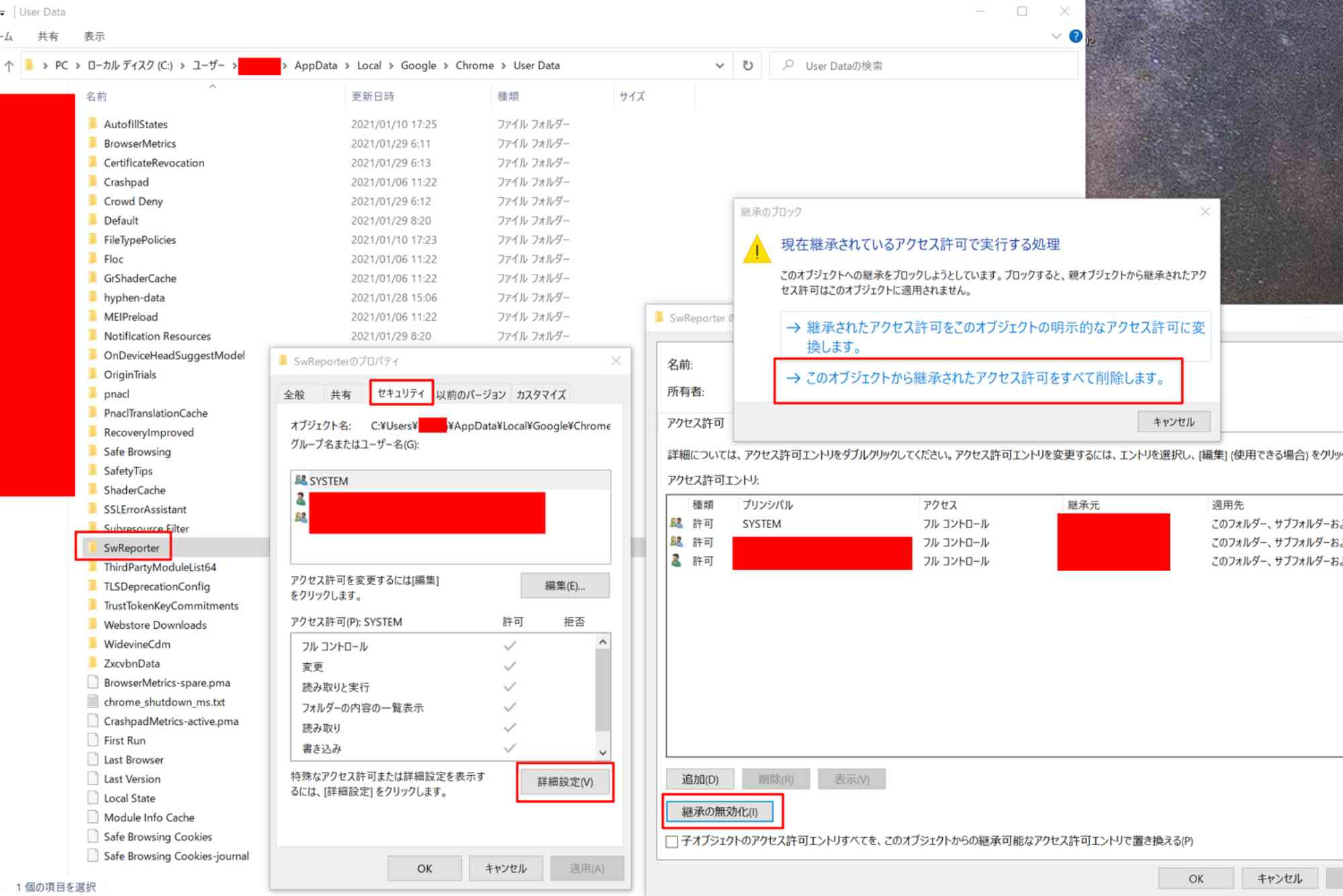
Modify File Permissions
This is one of the safest ways to disable the tool without deleting any files.
- Open File Explorer and navigate to the following path:
C:\Users\<YourUsername>\AppData\Local\Google\Chrome\User Data\SwReporter\<Version>\ - Right-click on the
software_reporter_tool.exefile. - Select Properties, then switch to the Security tab.
- Click Edit to change permissions.
- Select your user account and check the Deny box for Read & execute permissions.
- Apply the changes and close all windows.
By denying the executable permission, Windows will prevent the Software Reporter Tool from running. This method is reversible and safe, as you are not deleting files or changing registry settings.
Disable via Chrome Policies (For Advanced Users)
If you are comfortable managing Windows Group Policies or registry entries, you can disable the tool through system policies.
- Open the Registry Editor (
regedit). - Navigate to:
HKEY_LOCAL_MACHINE\SOFTWARE\Policies\Google\Chrome - Create a new DWORD (32-bit) value named
ChromeCleanupEnabled. - Set its value to
0to disable the cleanup tool. - Additionally, create
ChromeCleanupReportingEnabledand set it to0to disable reporting.
This method instructs Chrome itself not to run the Software Reporter Tool. Be cautious when editing the registry as incorrect changes can affect system stability.
Rename or Delete the Executable (Not Recommended)
Some users rename or delete the software_reporter_tool.exe file directly to stop it from running. Although this method is straightforward, it’s generally not recommended as Chrome may recreate the file during updates, and tampering with core files can cause unexpected behavior. If you choose this route, you should back up the executable first to restore it if needed.
Use Chrome Flags or Settings (Limited Impact)
Chrome currently doesn’t provide a built-in toggle to disable the Software Reporter Tool in its user interface or flags. The cleanup tool is embedded deeply in the browser’s maintenance processes, so relying solely on Chrome settings will not effectively disable it.
What Happens After Disabling the Tool?
Once disabled, Chrome will no longer scan your system for conflicting software automatically. This may reduce CPU usage and prevent some unwanted alerts related to system cleanup. However, it also means you lose a layer of protection that can detect harmful programs affecting browser stability.
To compensate, you should maintain your system security through other means, such as trusted antivirus software and manual system scans.
Is It Safe to Disable the Chrome Software Reporter Tool?
Yes, disabling the tool is generally safe and won’t harm your browser or system. However, because the tool helps detect software that can cause crashes or privacy issues within Chrome, turning it off means you need to be more vigilant about other security measures.
If you encounter any browser performance issues after disabling the tool, consider re-enabling it or performing manual checks with third-party security tools.
Additional Tips to Manage Chrome’s Performance and Privacy
- Regularly update Chrome to get the latest security patches.
- Use reputable antivirus software to scan your system.
- Clear browsing data to keep Chrome running smoothly.
- Review and manage Chrome extensions for potential performance hits.
- Adjust Chrome’s privacy settings to suit your preferences.
Chrome Software Reporter Tool Disable Tool can be a practical step if you are concerned about privacy or system performance. The best way to disable it safely is by modifying file permissions or applying Chrome policies, both reversible and low risk. While this tool serves to protect and maintain Chrome’s stability, taking control of it empowers you to optimize your browser experience according to your preferences.
FAQs
Q1: What exactly does the Chrome Software Reporter Tool do?
It scans your computer for software that may interfere with Chrome, such as malware, unusual extensions, or settings that cause crashes or unexpected behavior.
Q2: Can I remove the Software Reporter Tool permanently?
While you can delete its executable file, Chrome updates may restore it. Modifying permissions or policies offers a more stable way to disable it without removal.
Q3: Will disabling the tool improve my computer’s performance?
If the tool causes high CPU usage during scans, disabling it may reduce system slowdowns. However, overall impact varies per system.
Q4: Is the Software Reporter Tool a virus or malware?
No, it is a legitimate Google tool included with Chrome to enhance browser stability and security.
Q5: Can disabling the tool cause Chrome to become less secure?
Disabling the tool reduces Chrome’s automated conflict detection but does not directly weaken browser security. Using antivirus software is essential to maintain overall security.