
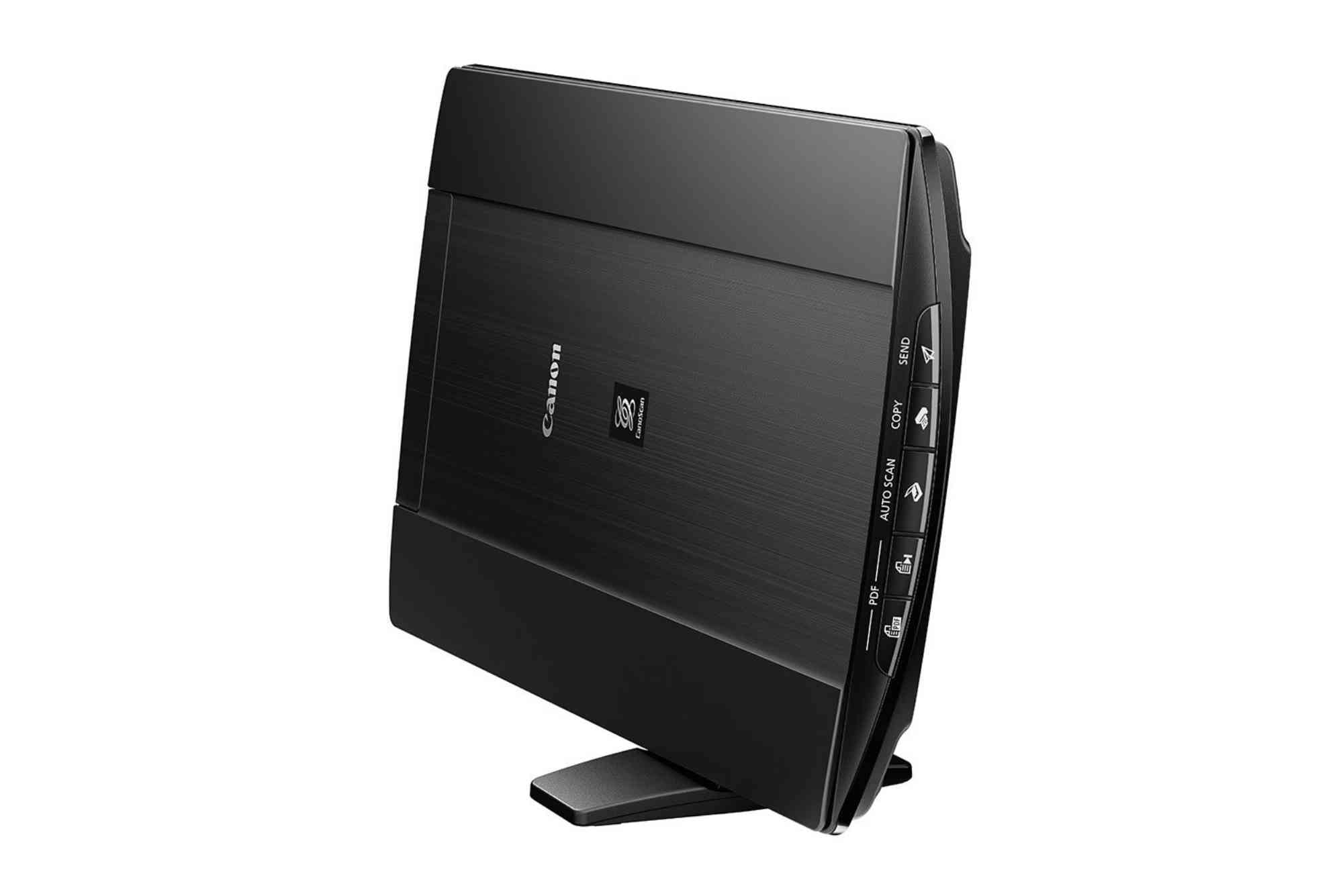
Canon LiDE 220 Software for Mac – Easy Scanning Solution
If you’re using the Canon LiDE 220 scanner with a Mac, you may have noticed that getting the software to work seamlessly isn’t always straightforward. The Canon LiDE 220 is a sleek, lightweight flatbed scanner known for its high-resolution scanning and USB power. While it’s a fantastic choice for home and office users alike, Mac compatibility issues can sometimes slow you down. This guide walks you through everything you need to know about using the Canon LiDE 220 software on Mac, from installation and setup to scanning tips and troubleshooting common problems.
Canon’s CanoScan LiDE 220 has long been a popular choice due to its 4800 x 4800 dpi resolution and fast scanning capabilities. However, Canon’s software isn’t always up to date with the latest macOS releases, which can create a headache for users upgrading their systems. Fortunately, with the right steps and tools, you can continue to use this scanner on your Mac without disruption. Whether you’re a student, professional, or just digitizing old family photos, this guide will help you get the most out of your device.
Why the Canon LiDE 220 Remains Popular Among Mac Users
The Canon LiDE 220 offers a balance of performance, affordability, and convenience. For Mac users, it’s an especially appealing option because of its compact design and no-need-for-a-power-adapter setup. You can just plug it into your USB port and start scanning—at least, that’s the idea. When everything works as intended, it’s one of the best flatbed scanners in its class.
Its compatibility with various file formats, high-speed scanning capabilities, and one-touch operation buttons make it ideal for both document and photo scanning. What’s more, the scanner’s Auto Scan Mode detects what you’re scanning and adjusts the settings automatically, which simplifies the entire process. But for all these features to shine on a Mac, you need the right software and drivers.
How to Download Canon LiDE 220 Software for Mac
To get started, you’ll need to download the appropriate drivers and software that allow your Mac to communicate with the Canon LiDE 220. Here’s how to do that.
Visit Canon’s Official Website
The safest way to get the Canon LiDE 220 software for Mac is through Canon’s official support page. Type “Canon LiDE 220 support” into Google, and the top link will usually lead you to the correct page. Once there, make sure to select “macOS” as your operating system. Canon often lists multiple versions, so be sure to pick the one that matches your current macOS version exactly.

Download the ICA Driver
Canon offers the ICA driver for macOS. This driver enables the scanner to be recognized by Mac’s native scanning applications, like Image Capture and Preview. It’s essential to download and install this before attempting to scan.
Download MP Navigator EX (Optional)
MP Navigator EX is Canon’s own scanning utility. While older, it provides extra features like multi-page PDF creation, photo correction, and advanced settings not available in Image Capture. For macOS 10.14 (Mojave) and earlier, this tool works quite well. However, newer versions of macOS may not support it unless you use workaround methods or switch to third-party alternatives.
How to Set Up and Use the Scanner on macOS
Once the drivers are installed, using the Canon LiDE 220 on Mac is straightforward. You don’t necessarily need Canon’s software to scan—macOS includes native tools that work well with the ICA driver.
Using Image Capture
After installing the ICA driver, open Image Capture from your Applications folder. If your scanner is connected and recognized, it will appear in the sidebar. From here, you can:
- Choose the type of scan (color, black and white, text)
- Select resolution and format
- Set output location
- Preview and crop the image
Click “Scan,” and your image will be processed and saved instantly.
Using Preview
You can also use the Preview app to scan documents and images. Go to File > Import from Scanner, and you’ll see similar options as in Image Capture. This is useful for quick scans when you don’t need batch features.
Scanning PDFs and Multipage Documents
To create multipage PDFs, Image Capture allows you to scan multiple pages into a single document if you select the appropriate format before scanning. For more control, third-party software like VueScan or ExactScan offers extended support for batch processing and advanced settings.
Common Issues and How to Fix Them
Sometimes, users report that the scanner is not detected, or the software does not function correctly. These issues are typically caused by driver incompatibility or macOS updates. Here’s how to handle common problems.
Scanner Not Recognized
If your Mac does not recognize the Canon LiDE 220:
- Ensure the ICA driver is installed correctly
- Try plugging into a different USB port
- Restart your Mac
- Check for software updates from Canon’s site
- Reset the printing system via System Settings > Printers & Scanners
MP Navigator EX Not Opening
If MP Navigator EX crashes or refuses to open, your macOS version might not be supported. Canon stopped updating this software after a certain macOS version. If you rely heavily on MP Navigator EX, consider sticking to an older macOS, or switch to VueScan for similar functionality.
Scanner Works Intermittently
Intermittent functionality can stem from energy-saving settings or USB connection issues. Use a powered USB hub if you’re on a newer MacBook with USB-C adapters. Avoid connecting through external keyboards or daisy-chained hubs.
Best Third-Party Alternatives for Canon LiDE 220 on Mac
If you want more advanced scanning options or need support for the latest macOS versions, third-party software might be the best solution. Many Mac users rely on tools like:
VueScan
VueScan is a popular choice for Canon LiDE 220 users. It provides extensive control over scanning parameters and works with almost every scanner model—even ones no longer officially supported by the manufacturer. VueScan’s interface is more complex, but it offers batch scanning, multipage PDF support, and photo color correction.
ExactScan
ExactScan is a macOS-native app that supports a wide range of scanners, including the Canon LiDE series. Its simple interface and robust compatibility make it a good MP Navigator EX replacement for users needing stability on newer macOS versions.
A Reliable Scanner with the Right Setup
The Canon Lide 220 Software MAC remains a strong option for Mac users when paired with the correct software. While Canon’s support for newer macOS versions may lag behind, you can still enjoy smooth functionality using native macOS tools or trusted third-party applications. Whether you scan occasionally or rely on the device daily, setting it up properly ensures a frustration-free experience.
By installing the correct drivers and choosing the best software options for your needs, you can extend the useful life of your Canon LiDE 220 even on the latest macOS. Don’t let outdated tools slow you down—optimize your scanner and start digitizing your documents and memories with ease.
FAQs
Can I still use Canon LiDE 220 with macOS Ventura or Sonoma?
Yes, but only if compatible ICA drivers are available. If not, third-party tools like VueScan offer a reliable workaround.
What if Canon’s website doesn’t list drivers for my macOS version?
That means official support may have ended for your OS version. You can try using existing drivers if they still work or use a third-party scanning app.
Does the Canon LiDE 220 work without MP Navigator EX?
Yes, it works fine with Image Capture or Preview as long as the ICA driver is installed.
How do I scan multiple pages into one PDF on a Mac?
Use Image Capture with “PDF” selected as the output format and check “Combine into single document.” Or use VueScan for more control.
Why does the scanner show a black image or not scan completely?
This could be due to a corrupted driver or hardware issue. Try reinstalling the driver or testing the scanner on another Mac.
Is Canon LiDE 220 compatible with Apple Silicon Macs?
With the correct ICA driver and apps like Image Capture, yes. However, official support for Apple Silicon may be limited.